Replacing Google Photos: private photo backup that still just works
Google Photos is convenient: every photo is backed up automatically, and you can search for "beach" or a person's face. But it isn't end-to-end encrypted, so Google can see and analyse every photo you store there. You can keep the convenience without that: there are photo backup services that encrypt your photos on your phone before they're uploaded.
Replacing Google Photos: private photo backup that still just works
Google Photos is convenient: every photo is backed up automatically, and you can search for “beach” or a person’s face. But it isn’t end-to-end encrypted, so Google can see and analyse every photo you store there. You can keep the convenience without that: there are photo backup services that encrypt your photos on your phone before they’re uploaded.
The default choice for most readers: Ente.
Who this guide is for
This guide is for readers who:
- back up their phone’s photos to Google Photos and want a private alternative
- want automatic backup to keep working, not a manual chore
- are deciding whether to use a service or run their own server
What this guide doesn’t solve: a full backup strategy for all your files. For that, see the backup implementation guide.
The short answer
- Most readers, on Android or iPhone: use Ente. End-to-end encrypted, automatic backup, stored in the EU, 10 GB free.
- iPhone only, and happy with Apple: you may not need to switch. Turn on Advanced Data Protection and your iCloud Photos are end-to-end encrypted.
- Already paying for Proton: Proton Drive has photo backup built in.
- You already run a home server: Immich is the closest thing to Google Photos you can host yourself. But you become the one responsible for backups.
Which route fits you?
| Ente | iCloud + Advanced Data Protection | Proton Drive | Immich | |
|---|---|---|---|---|
| Who runs it | Ente (US company) | Apple | Proton (Switzerland) | You |
| End-to-end encrypted | Yes | Yes, once turned on | Yes | No — it’s your own server |
| Where photos are stored | EU (Amsterdam, Frankfurt, Paris) | Apple’s data centres and those of partners | Proton’s data centres (Switzerland, Germany) | Your own hardware |
| Free storage | 10 GB | 5 GB | 2 GB, up to 5 GB (separate from Proton Mail’s own storage) | Your own disks |
| Works on | Android, iPhone, Windows, macOS, Linux, web | Mainly Apple devices | Android, iPhone, Windows, macOS, web | Android, iPhone, web |
| Effort | Low | Very low | Low | High |
Ente: the default
Ente is a photo backup app built as a private Google Photos replacement. It works much the same way: the app backs up your camera roll automatically, and you can browse, share and search your photos on any device.
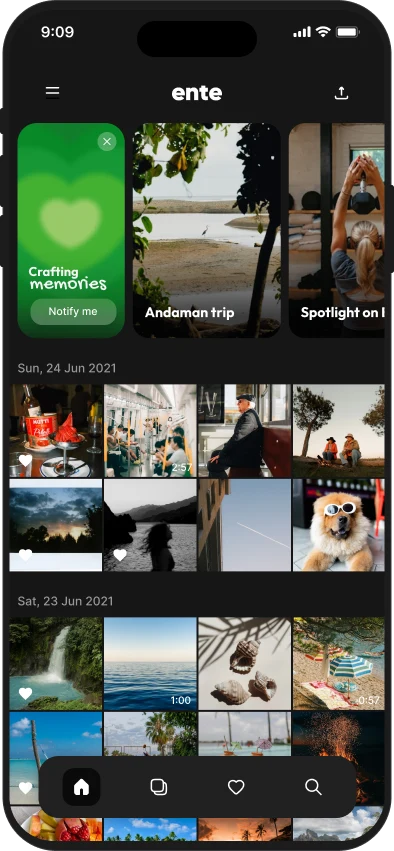
Ente’s phone app looks and works much like Google Photos. Image: Ente.
What makes it private:
- According to Ente, photos and their metadata (dates, locations) are encrypted on your device before upload, so Ente can’t see them.
- Face recognition and search (“beach”, “dog”) run on your own device, not on Ente’s servers. They are off until you turn on Machine learning in the settings.
- According to Ente, paid plans keep three encrypted copies with three providers in the EU: Amsterdam, Frankfurt, and a former fallout shelter under Paris. The free plan keeps one copy.
- The apps and server are open source. Cure53 audited Ente’s server code and infrastructure in 2025, in an audit sponsored by CERN.
Price: 10 GB free. 50 GB costs €2.99 ($2.99) a month or €29.88 ($29.88) a year; 200 GB costs €5.99 ($5.99) a month or €59.88 ($59.88) a year. You can share a paid plan with up to five family members at no extra cost.
The tradeoffs:
- Ente Technologies is a US company; its terms fall under Delaware law. Because your photos are end-to-end encrypted, that matters much less than with an unencrypted service, but it isn’t an EU company.
- If you lose both your password and your recovery key and are signed out everywhere, your photos are gone. Ente can’t reset it for you; only a trusted contact you set up beforehand under Legacy can recover the account. Store the recovery key in your password manager.
- Google’s AI editing tools don’t come with you.
iPhone: turn on Advanced Data Protection first
If you only use Apple devices, iCloud Photos is already the smoothest option. The catch is that by default Apple can access your iCloud photos. Advanced Data Protection changes that: once it’s on, iCloud Photos is end-to-end encrypted and Apple holds no keys. Two exceptions: shared albums in Photos stay outside end-to-end encryption even with it on, and Apple no longer lets new users in the UK turn it on at all (see the UK section of our Chat Control guide).
Turn it on under Settings → [your name] → iCloud → Advanced Data Protection. Apple requires two-factor authentication, a passcode on your device, up-to-date software on every device signed in to your account, and a recovery contact or recovery key (if you have neither, the screen sends you to Account Recovery first). Without those, you can lose your data for good. The full steps are in the iPhone privacy settings guide.
Choose Ente instead if you also use Android or Windows, or want photos stored outside Apple’s ecosystem.
Proton Drive: if you already use Proton
If you already pay for Proton Mail or Proton Unlimited, the Proton Drive app can back up your phone’s photos, end-to-end encrypted, into storage you’re already paying for. You turn it on in the app’s Photos tab. It’s cloud storage with photo backup rather than a dedicated photo app like Ente, but it saves adding another account. See the Proton Drive review.
Immich: host it yourself
Immich is open-source software that runs on your own server and looks and works a lot like Google Photos: automatic backup from the phone app, a timeline, face grouping, search and shared albums. It has been marked stable since version 2.0 (October 2025).
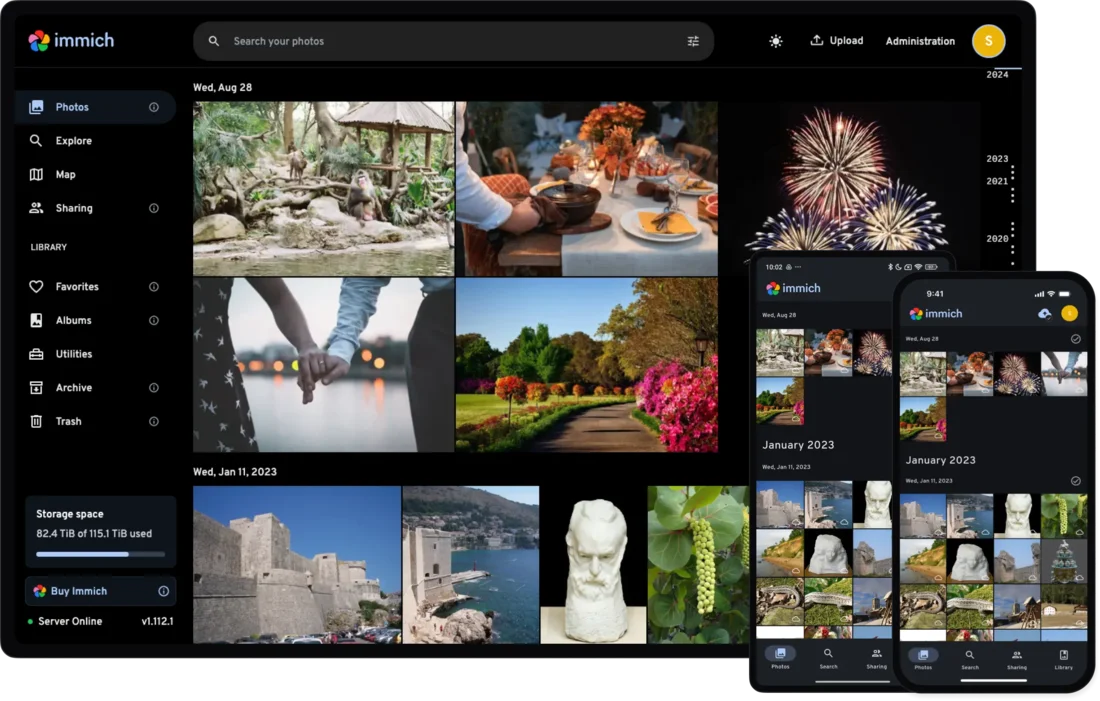
Immich on the web and on phones: a timeline, albums, a map and sharing, like Google Photos, but on your own server. Image: Immich.
It’s a real option if you already run a home server or NAS. It isn’t a shortcut for normal readers:
- It needs a server running Docker with at least 6 GB of RAM and 2 CPU cores.
- To reach it away from home, you need something like Tailscale. Don’t expose it directly to the internet unless you know what you’re doing.
- You are now the backup service. Immich’s own documentation says its built-in backup covers only the database; you must back up the photos yourself. One disk at home is not a backup: a fire, a theft or a dead disk takes everything.
Moving your photos out of Google
These steps move your library to Ente and assume a new Ente account; the order matters, so follow it from the top. Ente’s own migration guide uses the same order. Already backing up your phone with Ente? Pause that backup until step 3 is done.
- Turn off backup in Google Photos first. Wait until the app shows that everything is backed up, so photos only on your phone end up in the export too. Then, in the Google Photos app, tap your profile picture, then Photos settings (on iPhone: Google Photos settings) → Backup, and turn Backup off. Your photos stay on your phone and in Google, but nothing new goes to Google, so the export in the next step is complete.
- Export everything with Google Takeout. Go to takeout.google.com. Google ticks all its products, so untick everything except Google Photos, choose Next step, keep the file type at ZIP, and choose Create export. When Google’s email arrives, choose Download archive and download every part: a large library is split into several ZIP files. The download expires after about 7 days.
- Import into Ente with the desktop app. Click Upload, choose Google takeout, then pick one of two options. Unzipped folder is what Ente recommends: first unzip all the ZIP files into one folder, keeping the subfolders inside it, so Ente can match each photo with its metadata. ZIP files lets Ente unzip them for you, but it can miss metadata when Google put a photo and its metadata file in different ZIPs. Ente reads Google’s metadata files so dates and locations are kept; check the summary and choose Start import. If the upload gets interrupted, select the same folder or files again; photos already uploaded to that album are skipped. Want face recognition and search right away? Turn on Machine learning before you import.
- Only then turn on backup in the Ente app on your phone. Running the phone backup at the same time as the import can upload the same photos twice. If Google kept your photos in Storage saver quality, the originals on your phone don’t match the Takeout copies and are uploaded again. If you don’t want those second copies, turn on Backup only new photos under Settings → Backup → Backup settings in the Ente app.
- Check before you delete. Open a few albums in Ente, check that the dates are right, and only then delete your photos from Google. Do that at photos.google.com in a browser, not in the Google Photos app: Google says deleting in the app also deletes the photos from your phone.
Shared albums don’t come along reliably in a Takeout export. Ente advises downloading each shared album you want to keep from Google Photos separately and importing that folder.
Keep the Takeout files on an external disk too. That’s your second copy.
One copy is not a backup
Whichever route you choose, your photo library then lives in one place. Photos are often the only files people truly can’t replace. Keep a second copy on an external disk and update it a few times a year. The backup implementation guide explains a simple routine.
When this is overkill
If you rarely take photos and nothing sensitive is in your library, the most important step is simply that your photos are backed up somewhere. Switching services won’t protect you more than a working backup does.
A good stopping point: your photos back up automatically to an end-to-end encrypted service (Ente, or iCloud with Advanced Data Protection), and you have a second copy on an external disk.
Next step
Start here
- Ente — install the app and turn on backup
- iPhone privacy settings — turning on Advanced Data Protection, step by step
If you want to go further
- Backup implementation guide — a second copy of your photos and other important files
- Replacing Google Maps — the next Google app that’s easy to replace
- Android privacy without a custom ROM — more ways to push Google back on your current phone