Backup implementation: the 3-2-1 rule in practice
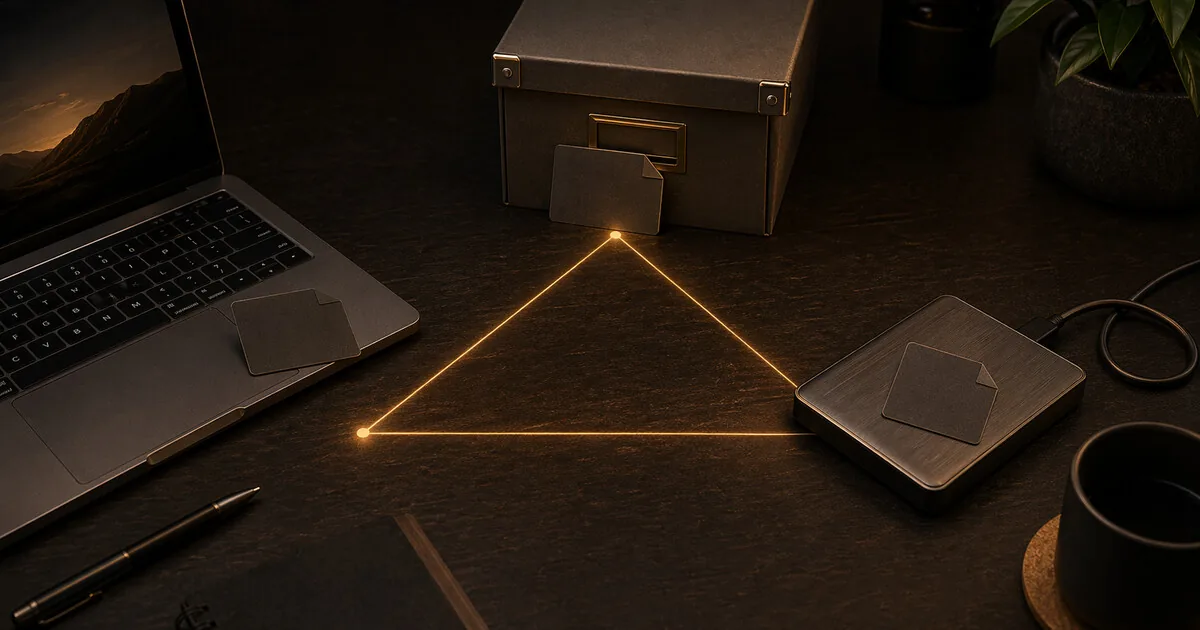
The 3-2-1 rule is simple: 3 copies of your data, on 2 different media, with 1 stored offsite. The theory is clear — the question is how to actually implement it.
Backup implementation: the 3-2-1 rule in practice
The 3-2-1 rule is simple: 3 copies of your data, on 2 different media, with 1 stored offsite. The theory is clear — the question is how to actually implement it.
This isn’t about convincing you that you need a backup. If you lose data to a crashed drive, ransomware, or a stolen laptop, the impact is immediate. This is the implementation.
Who this guide is for
This guide is mainly for:
- freelancers and small organisations whose files, invoices, contracts, or client work must stay recoverable
- readers who already know backup matters and now need a workable setup rather than more theory
- people whose biggest practical risk is continuity, not maximum privacy tooling
For low-friction normal users with mostly personal files, a simpler cloud backup or built-in device backup may already be enough. This guide becomes more useful once your files are business-critical or hard to reconstruct.
What you gain, and what it costs
If you implement this properly, you usually gain:
- much less chance that one crashed drive, stolen laptop, or ransomware event takes out your work
- a recovery path you can actually follow under stress
- clearer separation between your working copy, local backup, and offsite backup
But it costs something:
- some setup time
- a small ongoing routine to check backups and test restores
- some storage cost if you want encrypted offsite backup
This is usually a reasonable trade for business or continuity-heavy use. It becomes overkill only if you are building a complex backup stack before you have identified which files genuinely matter.
What you want to protect
Write this down before you start:
- Work files — quotes, invoices, project files, photos, contracts
- Email archive — if your email is stored locally (Thunderbird) or business-critical
- Password vault — your KeePassXC or Bitwarden export file
- Settings and configurations — if you’ve invested significant time setting up tools
Personal photos, music, and video can be included too, but are often less critical than work data.
The three copies
Copy 1 — Working version (your laptop/desktop)
This is your primary copy — the files you work with daily. Self-evident, but it counts.
Copy 2 — Local backup (external hard drive)
An external hard drive is the fastest and cheapest way to back up locally.
Choosing a drive:
- 1–2 TB is plenty for most freelancers
- Choose a 2.5” USB drive (portable) or a desktop 3.5” (more capacity, less portable)
- Encrypt the drive before use — see below
Setting up encryption:
Windows (BitLocker): Right-click the external drive → Turn on BitLocker → choose a password → save the recovery key somewhere safe (not on the computer itself).
Mac (FileVault/Finder): Right-click the drive in Finder → Encrypt → set a password.
Linux: Use LUKS when formatting:
cryptsetup luksFormat /dev/sdX
Automating the backup:
Windows: Use File History for continuous backup to an external drive — Control Panel → System and Security → File History → select your drive → Turn on. (The newer “Windows Backup” app mainly targets OneDrive, so File History is still the tool for a local external drive.)
Mac: Time Machine. Settings → General → Time Machine → add disk. Time Machine backs up automatically every hour when the drive is connected.
Linux: rsync in a cron job:
rsync -av --delete ~/Documents/ /media/backup/Documents/
Copy 3 — Offsite backup (encrypted cloud)
This is the backup that saves you when your house burns down, your laptop is stolen, or ransomware encrypts your local drive too.
Cloud backup: Proton Drive
Proton Drive is a good choice for the offsite backup: end-to-end encrypted (Proton has no access to your files), Swiss law, and no special technical knowledge required.
Pricing: the 200 GB tier is Proton Drive Plus; 500 GB comes with Proton Unlimited, which also bundles Proton Mail, VPN and Pass. Both cost a few euros/dollars a month and are cheaper on annual billing — check the current figure at proton.me/pricing. Drive Plus keeps file version history for up to 10 years, which matters for the ransomware recovery below.
Setting up the desktop client:
- Create a Proton account at proton.me
- Download the Proton Drive desktop client (Windows, Mac, Linux)
- Log in and set the sync folder — choose the folder with your work files
- Proton Drive syncs automatically when you’re online
What to sync:
- Your Documents/Work folder or equivalent
- Your password vault (if you use KeePassXC: the .kdbx file)
- Invoices and contracts
What not to sync:
- Large media files (videos, RAW photos) — too much space and bandwidth
- System software — you can reinstall that
Handling RAW photos and large media files separately: If your work involves photography or video production, RAW files are often your primary work data and can run into hundreds of gigabytes. Cloud sync via Proton Drive is too expensive and too slow for this. Alternative approach:
- Local: two external drives, swapped alternately (keep one offsite with family or at an office)
- Cold storage cloud: Backblaze B2 or AWS S3 Glacier for archiving — cents per GB per month, not meant for daily access
- NAS at home: if your volume is high, a Synology or similar NAS with RAID-1 is the most practical solution for local redundancy
The 3-2-1 rule still applies — adjust the approach to the volume, not the rule.
Alternative: Nextcloud (self-hosted)
If you want more control over where your data lives, you can self-host Nextcloud on a VPS or home server. This gives full control but requires more technical knowledge.
See the Nextcloud review for what’s involved. For most freelancers without server experience, Proton Drive is the better choice.
Backup schedule
A backup you never run is not a backup.
Daily (automatic):
- Cloud sync via Proton Drive — runs in the background
Weekly (manual, 5 minutes):
- Connect the external hard drive
- Let Time Machine or your rsync script run
- Disconnect the drive
Monthly (test):
- Restore a random file from the cloud backup — verify it works
- Check that the local drive is still properly synced
Ransomware protection
Ransomware encrypts all files it can reach — including synced cloud folders if the sync client is active.
Protection:
- Proton Drive retains versions — if a file gets encrypted, you can restore a previous version. Paid plans (Drive Plus / Unlimited) keep version history for up to 10 years; the free tier keeps far less.
- Disconnect the local drive — an external drive that isn’t connected can’t be reached by ransomware. Always disconnect after the backup.
- Immutable backups — some cloud providers offer immutable storage where files can’t be deleted for a set period, even by ransomware.
Checklist: are you ready?
- External hard drive purchased and encrypted
- Automatic local backup configured (Time Machine / File History)
- Proton Drive account and desktop client set up
- Work folder selected for cloud sync
- Password vault included in the backup
- Test restore completed — one file restored from cloud
Next step
Reviews
- Proton Drive review — evaluate the practical tradeoffs of the cloud layer
- Nextcloud review — self-hosted alternative (technical)
- VeraCrypt review — local encryption of sensitive files
Profiles
- Profile: small business owner — backup in the context of business risk