Android privacy without a custom ROM: what you can do on a regular phone
Who this guide is for. This guide is mainly for people using a normal Android phone who want a meaningful privacy improvement without buying new hardware or installing a custom OS.
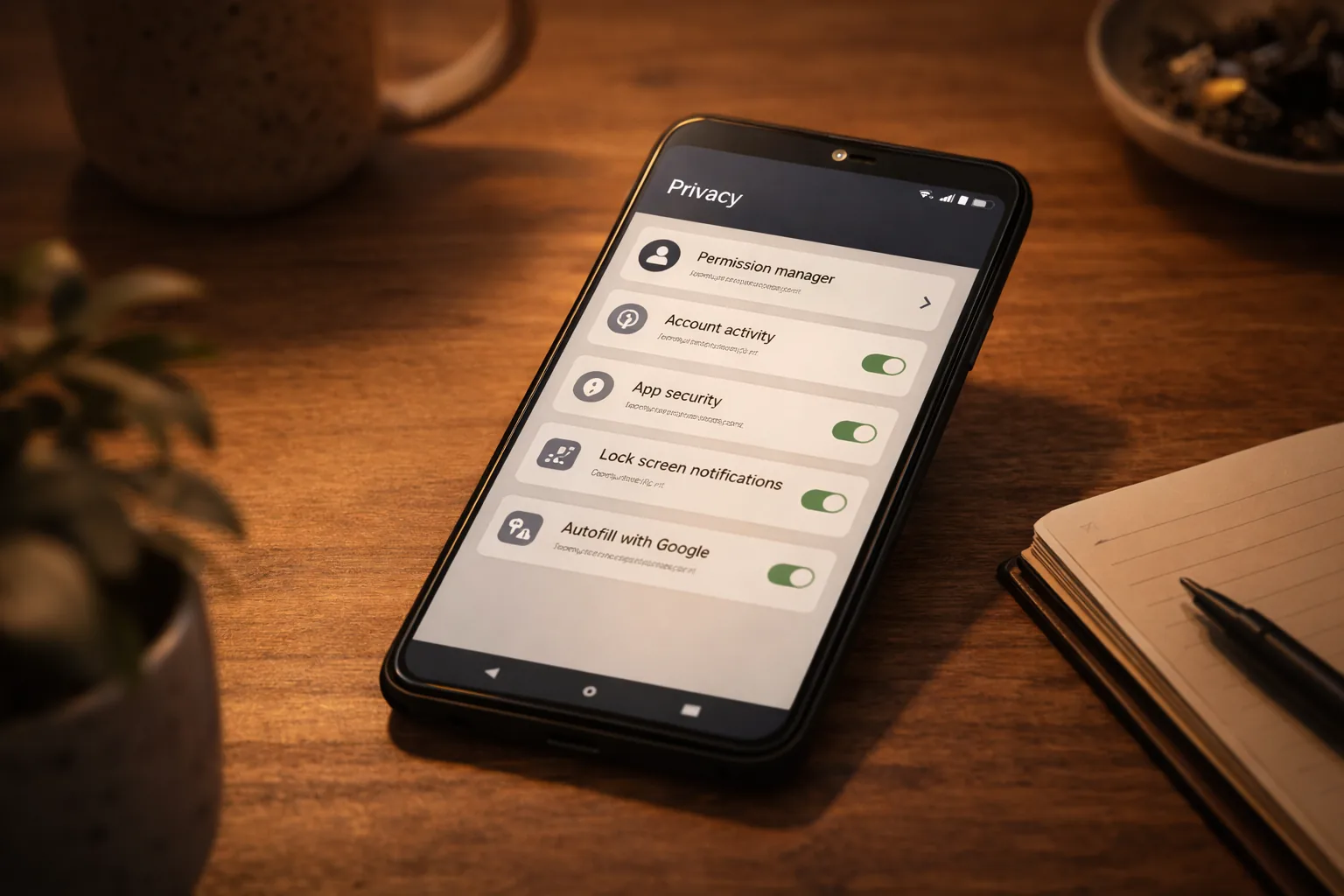
Android privacy without a custom ROM
Who this guide is for. This guide is mainly for people using a normal Android phone who want a meaningful privacy improvement without buying new hardware or installing a custom OS.
It fits especially:
- people on Samsung, OnePlus, Xiaomi, Motorola, or similar phones who want better privacy now
- readers who are not ready for GrapheneOS yet but still want concrete changes that matter
- users who want lower tracking and less data leakage with limited added friction
This is step 3 in the normal baseline, after passwords and 2FA are already in place.
What you gain, and what it costs
If you follow this guide, you usually gain:
- less tracking by Google, your phone maker, and over-permissioned apps
- better control over what apps can access on your current device
- a practical privacy improvement path without switching phones immediately
What it costs:
- some convenience, especially if you restrict Google defaults and manufacturer apps
- a bit of setup time and occasional app-by-app decisions
- the reality that this is still an improvement path, not a full de-Google solution
When this is overkill
If you only want a few fast wins, you do not need to do every section at once. Start with DNS, app permissions, and account cleanup first.
If your threat model is much higher, or you specifically want to remove Google Play Services and manufacturer software from the equation, this guide is not the end state. That is when GrapheneOS becomes the more relevant path.
GrapheneOS is the gold standard for Android privacy — but you don’t have to switch phones to take your privacy seriously. On any Android phone, you can significantly improve what happens to your data.
This guide is for anyone with a Samsung, OnePlus, Xiaomi, or any other Android phone.
Coming from a stalking or domestic abuse situation? Only carry out these steps when you’re ready to act completely — see the stalking profile for the right order. Some changes may be visible to someone monitoring your device.
Important boundary: this guide reduces tracking and leak risk, but it does not remove Google Play Services and manufacturer software from your phone. If you want to tackle that too, only then move on to the GrapheneOS overview.
Order in this guide: the sections are roughly sorted by impact. If you only want the fastest wins today, do section 3 (Private DNS), section 2 (App permissions), and section 1 (Google account) first, and leave the rest for later.
1. Minimize Google account data collection
Google account settings → Data & Privacy
This is the most important step. Google collects by default:
- Location History — turn off
- Web & App Activity — turn off or restrict heavily
- YouTube History — turn off
- Ad ID personalization — turn off
Settings → Google → Ads → Delete advertising ID (Android 12+) Or: enable “Opt out of Ads Personalization” on older versions.
This is especially useful if you want to improve the Android phone you already have without immediately changing accounts or devices. If your goal is to become structurally less dependent on Google, this is a transition step, not an end state.
2. Audit app permissions
Settings → Privacy → Permission Manager (or similar, depending on manufacturer)
Work through each category: location, microphone, camera, contacts, phone, storage.
Set the right mode for each:
- Location: “Only while using the app” — never “Always” unless it’s a navigation app
- Precise location: turn off for everything that doesn’t need it
- Microphone and camera: “Only while using” or “Ask every time”
- Contacts, phone: revoke from apps with no reason to have it
Android 12+ has a Privacy Dashboard (Settings → Privacy → Privacy Dashboard) — a timeline of which apps recently accessed your location, microphone, or camera, with direct links to revoke permissions. Use this regularly as an audit.
Microphone and camera: hardware toggles in the notification shade Pull down → edit tiles → add “Mic access” and “Camera access” quick tiles. When off, Android blocks access at the system level — all apps get silence or a black screen regardless of their permissions. Stronger than revoking per-app permissions.
Clipboard monitoring (Android 12+): When an app reads clipboard content set by a different app, a notification appears automatically. No setup needed — it’s a built-in awareness feature that reveals apps silently reading your clipboard.
3. Set private DNS
Settings → Network → More Connection Settings → Private DNS
Choose “Private DNS provider hostname” and enter: dns.quad9.net
This encrypts your DNS traffic and hides which domains you visit from your internet provider. Works on any modern Android, no app required.
For most readers this is the lowest-friction step in the whole guide. If you want to understand what it does and does not solve first, read the Privacy DNS guide.
4. Disable bloatware
Manufacturers pre-install apps that collect data and drain battery. You often can’t remove them, but you can disable them.
Settings → Apps → [app] → Disable
Candidates to disable: manufacturer’s news aggregator, manufacturer’s browser if you don’t use it, pre-installed games, redundant assistant apps.
5. Replace apps
The biggest improvement comes from which apps you use:
| Replace | With | Why |
|---|---|---|
| Chrome | Firefox or Brave | Less tracking, better privacy settings |
| Google Maps | Organic Maps | Fully offline, no tracking |
| Signal | End-to-end encrypted, no Meta metadata | |
| Gmail | Proton Mail | Encrypted, Switzerland |
| Google Drive | Proton Drive | End-to-end encrypted |
| Google Authenticator | Aegis | Open-source, encrypted backup |
| Chrome passwords | Bitwarden | Open-source, cross-platform |
Not sure whether to pick Firefox or Brave? Use the browser comparison and skip Tor Browser for this job. Tor is not a default replacement for your daily Android browser.
6. F-Droid alongside the Play Store
F-Droid is an alternative app store with only open-source apps. No Google account required, no trackers.
Install F-Droid via f-droid.org and use it for apps like:
- Organic Maps (navigation)
- Aegis (2FA authenticator)
- Molly (Signal fork)
- KeePassDX (password manager)
You can use F-Droid and the Play Store side by side.
For most readers, this is an optional deeper step, not the first move. Start with DNS, permissions and default apps if you want to keep friction low.
7. Limit notification access
Settings → Privacy → Notification Access
Apps with notification access can read all your alerts — including messages and verification codes. Restrict this to apps that genuinely need it (like Wear OS links or smartwatch apps).
8. Strengthen screen lock
- Use a strong password or long PIN (not a pattern — visible in fingerprints on the glass)
- Set “Auto-lock” to maximum 1 minute
- Turn off “Show notification content on lock screen” for sensitive apps
9. Recent Android versions: Private Space and extra security
Android 17 is the current version (released June 2026); Android 16 arrived in 2025. The features below are available from Android 15 or 16 depending on your device and manufacturer, and carry forward into 17. Samsung and other makers typically ship each version a few months after Pixel.
Advanced Protection (Android 16+): Settings → Security & privacy → Advanced Protection
A single toggle that switches on a bundle of Google’s strongest protections at once — hardened network and app behaviour, scam/spam filtering, theft detection, and an inactivity reboot (the phone restarts itself if it stays locked for a few days, returning it to the harder-to-attack “before first unlock” state). It is aimed at people at higher risk of targeted attacks but is available to anyone. If you only change one thing in this section, change this.
Private Space (Android 15+): Settings → Security & privacy → Private Space
A separate, locked-down area of your phone for sensitive apps. When locked, the apps are invisible in the launcher, search, and notifications. Works like a lightweight second profile — useful for banking, health information, or sensitive communication.
Identity Check (Android 16+): Requires biometric authentication (fingerprint or face) to access sensitive settings and apps outside trusted locations — even if someone knows your PIN. Enable via Settings → Security & privacy → Identity Check. Useful as theft protection.
Device Theft Protection (Android 16+): Requires biometric verification to regain access after the device has been reported stolen, even if the PIN is known. Stronger than a lock screen alone.
Mobile network warnings (Android 15+, supported devices): Warnings for insecure mobile networks and cases where identifiers such as IMSI, IMEI, or SUCI are exposed to the network unnecessarily. Look under Settings → Security & privacy or More security & privacy. Note: disabled by default and depends on modem hardware — not all devices support this.
For most regular users these are extra improvements, not baseline requirements. Treat them as a useful bonus if your device and Android version support them.
What this doesn’t fix
On stock Android you still trust:
- Google (if you use a Google account)
- The manufacturer (Samsung, Xiaomi, etc. — which collect their own data)
- Google Play Services (running in the background with broad permissions)
This guide significantly reduces your attack surface but doesn’t eliminate it. If you have a higher profile — journalist, activist, someone who needs to work truly anonymously — GrapheneOS on a Pixel is the next step.
If you are mostly unsure whether switching is worth it, do not jump straight to the install steps. Start with the GrapheneOS overview. That lets you decide first whether the added friction is actually justified for you.
Priority order
- Set private DNS — 2 minutes, immediate effect
- Audit app permissions — 10 minutes
- Minimize Google account data — 10 minutes
- Replace apps — gradually, start with Signal
- Disable bloatware — 15 minutes
- Install F-Droid — optional, if you want open-source apps
If you only do three things, do this:
- turn on Private DNS
- go through your app permissions
- replace at least Chrome or WhatsApp with a better alternative
Next step
Go further
- Security as a habit — build durable habits once your phone settings are in order
- F-Droid guide — open-source apps without Google
- Install GrapheneOS — if you want to go further
Other platforms
- iPhone privacy settings — the same approach for iOS
Profiles
- The normal baseline — basic steps for everyone
- Profile: privacy conscious — if you want to go beyond basic measures
- Profile: stalking and domestic violence — if you suspect your device is being monitored, read this first
Reviews
- Signal and Molly review — the messaging app that replaces WhatsApp