Which password manager should you choose?
For most people, a password manager is the biggest security gain per hour. Not because it is exciting, but because reused or browser-stored passwords are still one of the easiest routes into your accounts.
Which password manager should you choose?
For most people, a password manager is the biggest security gain per hour. Not because it is exciting, but because reused or browser-stored passwords are still one of the easiest routes into your accounts.
The practical choice is usually simple:
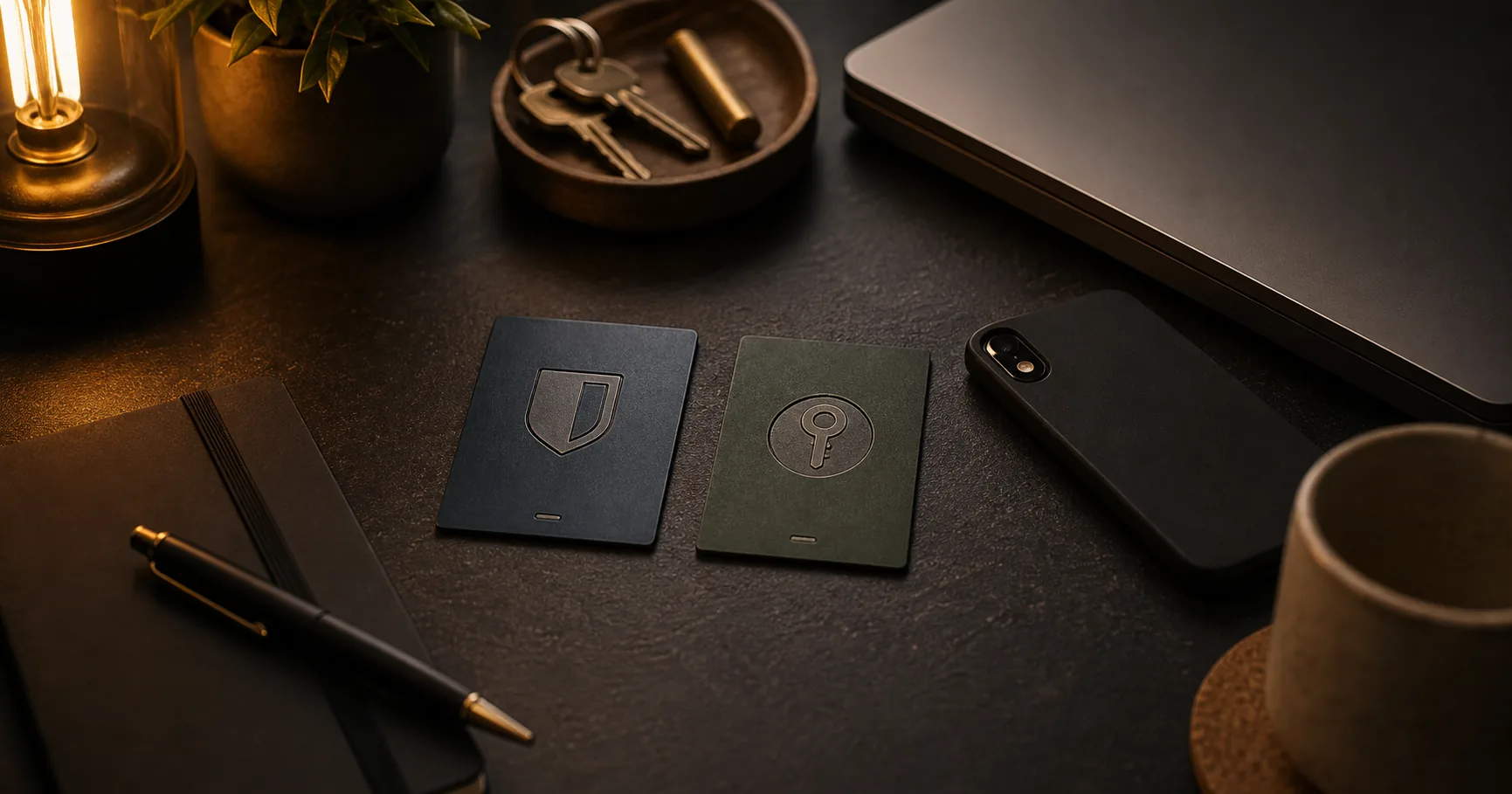
- Bitwarden if you want something that works across laptop and phone straight away
- KeePassXC if you deliberately do not want a cloud vault and are willing to handle sync yourself
This guide helps you make that choice without turning a basic security upgrade into a hobby project.
Who this guide is for
This guide is for readers who:
- do not yet use a password manager
- currently rely on browser passwords or reused passwords
- are choosing between Bitwarden and KeePassXC
- want a realistic migration path instead of a perfect one-night cleanup
This is not a guide for enterprise SSO, privileged access tooling, or fully separated admin vaults. For most PrivacyGear readers, the right first choice is much lower-friction than that.
What this guide does and does not solve
A password manager does solve:
- reused passwords across multiple accounts
- weak hand-made passwords
- account chaos around logins, notes and recovery codes
But it does not automatically solve:
- phishing if you enter your password on a fake site
- weak account recovery through insecure email or SMS
- missing 2FA
- missing backups or poor device hygiene
Treat a password manager as a foundation layer, not the finish line.
The practical default
For most readers, Bitwarden is the default choice.
Why:
- works immediately on Windows, macOS, Linux, Android and iPhone
- syncs across devices without extra setup work
- has solid browser extensions and a usable mobile app
- the free tier is enough for most personal use
For a normal user, student, small business owner, or healthcare worker, that is usually the best balance between security and maintenance.
KeePassXC is the stronger fit when you are solving a different problem:
- you do not want a cloud vault at all, even encrypted
- you want to manage the database file yourself
- you already trust your own sync or backup routine
- you accept that mobile use and synchronisation require more discipline
That is not “better privacy for everyone”. It is a different tradeoff.
Choose Bitwarden if…
- you are new to password managers
- you use multiple devices
- you want iPhone or Android support without extra workarounds
- you may later want limited sharing with family or colleagues
- your priority is a route you will actually maintain
Bitwarden is usually the right choice if your passwords currently live in Chrome, Safari, Firefox, iCloud Keychain, or scattered notes and you just want to move to something saner.
Choose KeePassXC if…
- you deliberately do not want dependency on a cloud service
- you mostly work on desktop
- control matters more to you than convenience
- you want to handle sync yourself via Syncthing, an encrypted cloud folder, or manual copies
- you understand that mobile use depends on compatible apps, not one unified first-party stack
KeePassXC is strong, but only if you also carry the operational part: where the .kdbx file lives, how it is backed up, and how you prevent version conflicts.
When browser passwords are no longer enough
Browser password storage is better than reusing the same password everywhere, but it has limits:
- it often works less well outside that one browser
- export, backup and recovery are less explicit
- it encourages leaving everything attached to one browser profile
- it does less to force deliberate account hygiene and migration
If you have relied on browser storage for years, that is not a moral failure. Use it as a stepping stone, not the final state.
How to switch without creating chaos
Step 1: choose one primary route first
Do not adopt three password managers at once. Pick one route:
- Bitwarden for most readers
- KeePassXC if you deliberately want local-first control
For most people, running two managers in parallel does not add security. It adds confusion.
Step 2: start with your most important accounts
Do not begin with every forum login from 2014. Start with:
- banking
- government login
- cloud storage
- social media
These are the accounts attackers can use to cause the most damage or reset the others.
Step 3: create a strong master password
Your master password should be:
- unique
- long
- never reused anywhere else
Practical minimum: a passphrase of 4 to 6 random words, or a long unique sentence you do not use anywhere else.
Write the master password down on paper and store it safely. Not on a sticky note attached to the laptop, but also not only in your head if you know you might lose it.
Step 4: import only if it genuinely helps
Importing from Chrome, Safari or another manager can save time. But do not import everything blindly and call that migration complete.
After import, you still need to:
- remove duplicates
- replace old weak passwords
- check which accounts still matter
Migration is successful when your important accounts are in order, not when you have collected a thousand legacy logins.
Step 5: change passwords as you move them
For important accounts:
- open the account
- generate a new unique password in your manager
- save it immediately
- log out and test logging back in
That test matters more than speed. Otherwise you discover much later that one character was stored incorrectly.
Backup and recovery: this is part of the job
A password manager without a recovery routine is only half implemented.
Bitwarden
Minimum:
- write your master password down on paper
- enable 2FA on your Bitwarden account
- store recovery codes somewhere retrievable
Stronger:
- export an encrypted backup from time to time
- plan what happens if you lose your phone
KeePassXC
Minimum:
- back up the
.kdbxfile - document where it lives
- test that the backup actually opens
Stronger:
- keep one offline or offsite copy
- document how sync works if you use multiple devices
- only add a key file or hardware key if you are sure recovery remains workable
A “stronger” setup that you cannot later unlock is not an upgrade.
KeePassXC: two settings to get right immediately
KeePassXC only actually protects your database once these two default settings are turned on. Both are one-time work.
Auto-lock
Go to Tools → Settings → Security and enable Lock database after inactivity with a timer of 1 to 5 minutes. Without this, your database stays open once you walk away from your device — a strong master password does not help there.
Automatic clipboard clearing
Same screen: enable Clear clipboard after, for example 10 to 30 seconds. Otherwise a copied password stays on your clipboard until you copy something else — readable by any app that reads the clipboard.
These are not “advanced” settings. Turn them on when you install KeePassXC, not as a later improvement.
When the stronger setup is worth it
For some readers, the extra friction of KeePassXC or a stricter backup routine is justified:
- you work with confidential files
- you do not want cloud dependency for your vault
- you already have a mature local-first routine
- you accept that this costs more maintenance
But for a normal user, or someone still reusing passwords everywhere, that is often not the best first step. First build a working habit, then add extra control.
Common mistakes
- trying to migrate every account at once
- keeping two managers in parallel without a clear primary route
- forgetting 2FA on the email account and on the password manager itself
- not storing recovery codes
- choosing KeePassXC for ideological reasons without a sync or backup plan
- using Bitwarden premium TOTP without realising that password and second factor then sit in the same vault
Short advice by profile
- Normal user: start with Bitwarden
- Student or employee: start with Bitwarden unless you already run a disciplined local-first routine
- Small business owner: Bitwarden is usually more practical; KeePassXC only if you deliberately want to carry the operational burden
- Healthcare / confidential roles: choose based on workflow, but take backup, recovery and access discipline more seriously than the average reader
Next step
Choose your route
- Bitwarden review — the simpler open-source choice for most readers
- KeePassXC review — local-first choice if you deliberately want no cloud vault
Finish the account layer
- Two-factor authentication guide — enable 2FA on email and on your password manager next
- Backup implementation guide — if recovery and offsite backup are not yet in place
Use it in context
- The normal baseline — if you are building a clean baseline
- Profile: student or employee — if work and personal accounts bleed into each other
- Profile: small business owner — if continuity and client data are part of the problem