Private notes apps: Standard Notes, Notesnook, Joplin or Apple Notes?
Notes apps often hold more than people think: passwords written down "just for now", health details, journal entries, work ideas. Google Keep, Evernote and OneNote don't end-to-end encrypt your notes by default, so the company running them can get at them. A private notes app encrypts your notes on your own device, so the company that syncs them can't.
Private notes apps: Standard Notes, Notesnook, Joplin or Apple Notes?
Notes apps often hold more than people think: passwords written down “just for now”, health details, journal entries, work ideas. Google Keep, Evernote and OneNote don’t end-to-end encrypt your notes by default, so the company running them can get at them. A private notes app encrypts your notes on your own device, so the company that syncs them can’t.
The default choice for most readers: Standard Notes.
Who this guide is for
This guide is for readers who:
- use Google Keep, Evernote, OneNote or Notion for personal notes and want something private
- want their notes on both their phone and computer
- want to know which option is trustworthy, not just which has the most features
What this guide doesn’t solve: passwords don’t belong in a notes app. Use a password manager for those.
The short answer
- Most readers: Standard Notes. End-to-end encrypted by default, independently audited four times, part of Proton since 2024. The free plan is plain text only.
- You want rich formatting and images for free: Notesnook. End-to-end encrypted with a generous free plan, from a small independent team.
- Only Apple devices: Apple Notes, with Advanced Data Protection turned on.
- You want to write in Markdown and choose your own sync: Joplin. But you have to turn encryption on yourself.
The four options side by side
| Standard Notes | Notesnook | Apple Notes | Joplin | |
|---|---|---|---|---|
| Run by | Standard Notes Ltd. (part of Proton since 2024) | Streetwriters (Pakistan) | Apple | Open-source project |
| End-to-end encrypted | Yes, always | Yes, always | Only with Advanced Data Protection | Only if you turn it on |
| Independent audits | Four (latest: Cure53, 2022) | None | Apple’s own security documentation | One informal (2020) |
| Open source | Yes | Yes, including the sync server | No | Yes |
| Free plan | Plain-text notes, unlimited devices | Unlimited notes, rich text, 50 MB of uploads a month | Included with iCloud | The app is free; sync via Dropbox, OneDrive, Nextcloud or WebDAV |
| Paid | $90/year (Productivity; priced in US dollars) | About €22/year (about $24) | iCloud+ storage | Joplin Cloud from €28.69/year (about $32) |
| Works on | Windows, macOS, Linux, Android, iOS, web | Windows, macOS, Linux, Android, iOS, web | Apple devices (plus web) | Windows, macOS, Linux, Android, iOS (web with Joplin Cloud) |
Standard Notes: the default
Standard Notes is built around one idea: your notes are end-to-end encrypted, always, and the company can’t read them. It has been independently audited four times, most recently by Cure53 (servers, 2022) and Trail of Bits (encryption, 2020); its audit page lists nothing newer (November 2026). In April 2024 it joined Proton, the company behind Proton Mail. Standard Notes says it stays open source, keeps being audited, and runs as a separate product. Its privacy policy names Standard Notes Ltd., based in the United States, as the operator.
The catch: the free plan gives you plain-text notes only. Rich text, checklists, Markdown, spreadsheets and folders need the Productivity plan, which is $90 a year. Prices are in US dollars. The site lowers the price for some regions, and cancels and refunds the subscription if your card’s billing region doesn’t match. The Professional plan ($120 a year) adds 100 GB of encrypted file storage and can be shared with up to five accounts.
Choose it if you want the option with the strongest track record, and plain text is fine or you’re willing to pay for formatting.
Notesnook: the most for free
Notesnook looks and works more like Evernote or Google Keep: rich text, checklists, images and notebooks, all end-to-end encrypted, and unlimited notes on the free plan. Everything is open source, including the sync server, and your data is stored in Germany.
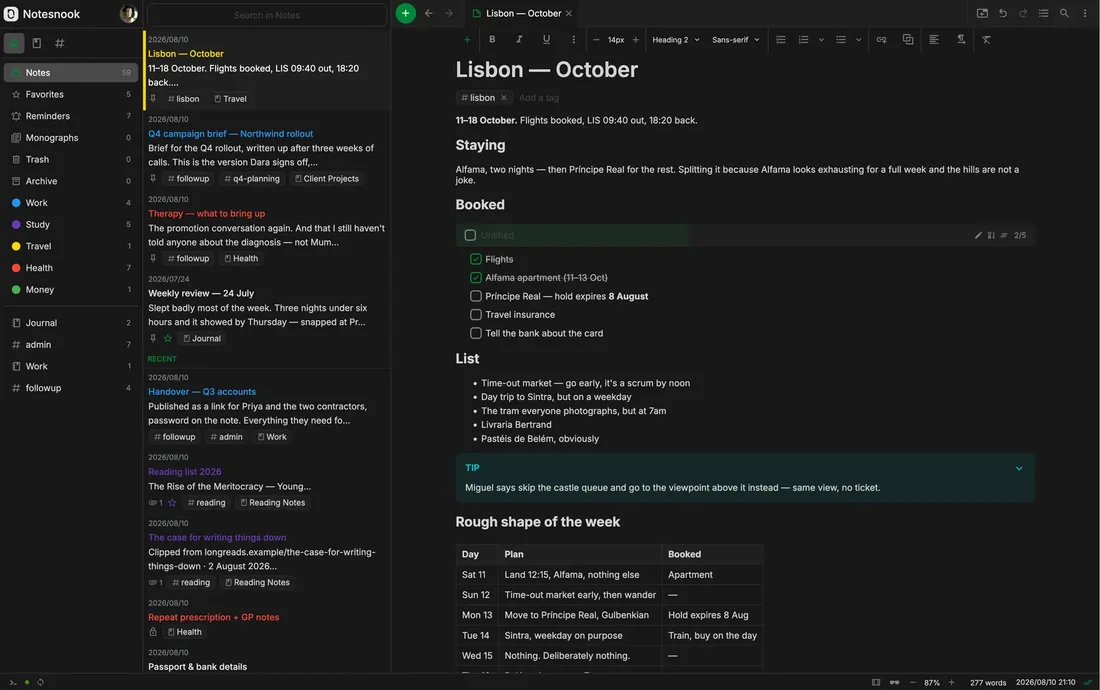
Notesnook’s web app: rich text, checklists and tables, all end-to-end encrypted. Image: Notesnook.
The tradeoffs:
- It’s made by a small independent company, Streetwriters, based in Pakistan (its about page lists a team of four). That isn’t a problem in itself, since your notes are encrypted before they leave your device, but it’s a much smaller organisation than Proton.
- Notesnook has had no independent security audit; its own comparison page says so (November 2026).
- The free plan limits uploads (images and attachments) to 50 MB a month and 10 MB per file, and allows up to 50 notebooks and 50 tags. Simple checklists are free; the fuller task lists need a paid plan. Paid plans start at about €22 a year (about $24) for Essential; Pro is about €76 a year (about $85). Notesnook adjusts the price to the country of your payment method.
Choose it if you want a full-featured notes app without paying, and you’re comfortable relying on the open-source code rather than an audit.
Apple Notes: fine, if you turn on Advanced Data Protection
If you only use Apple devices, Apple Notes is already on your iPhone, iPad and Mac, and it works well. By default, though, Apple can access your iCloud notes. With Advanced Data Protection turned on, your notes are end-to-end encrypted and Apple holds no keys. On your iPhone, go to Settings → [your name] → iCloud → Advanced Data Protection and tap Turn On Advanced Data Protection; turning it on on one device turns it on for your whole account. You need a recovery contact or recovery key first, and the iPhone walks you through that. All requirements are in the iPhone privacy settings guide. One exception: Apple no longer lets new users in the UK turn it on (see the UK section of our Chat Control guide).
Choose something else if you also use Windows, Android or Linux: on those, Apple Notes is limited to the web version at iCloud.com. With Advanced Data Protection on, that web access is off until you approve it from one of your Apple devices.
Joplin: local-first, for tinkerers
Joplin is a free, open-source notes app in which you write notes in Markdown. Joplin keeps them in its own database and sync format (not as files you edit directly), and can export them as plain Markdown files. It doesn’t come with its own required account: you sync through Dropbox, OneDrive, Nextcloud, WebDAV or S3, or pay for Joplin Cloud (from €28.69 a year, about $32; servers in France).
The important catch: end-to-end encryption is off by default. To turn it on, start on your computer:
- In the Joplin desktop app, open Tools → Options (on a Mac: Joplin → Preferences…). Set up your sync under Synchronisation first if you haven’t yet.
- Go to Encryption and click Enable encryption.
- Enter a master password. If you forget it, it can’t be recovered.
- Click Synchronise and let it finish: everything is sent again, encrypted, which can take a long time.
- Then open Joplin on your next device and synchronise; it asks for the same password. Do one device at a time; turning encryption on separately on several devices gives you several keys.
Without encryption, your sync provider (Dropbox, say) can read your notes.
Choose it if you like writing in Markdown, want to choose where your notes are synced, and you’re willing to set up encryption properly.
Moving your notes
Import on a computer (web or desktop app); your notes then sync to your phone.
- From Google Keep: export with Google Takeout (select only Keep) and download the .zip file.
- Notesnook: Settings → Import & export → Notesnook Importer, choose Google Keep and drop in the .zip.
- Standard Notes: unzip the export first. Click the account icon in the bottom bar, then Import → Google Keep, and select the note files (.json) from the Keep folder.
- Joplin has no Keep importer; its File → Import → Other applications… links to the forum’s conversion tips.
- From Evernote: export each notebook as an .enex file from the Evernote desktop app.
- Notesnook: Settings → Import & export → Notesnook Importer, choose Evernote.
- Standard Notes: account icon → Import → Evernote.
- Joplin: File → Import → ENEX - Evernote Export File (as Markdown).
- On a free plan: Standard Notes imports everything as plain text (formatting and checklists need Productivity). In Notesnook, imported images and attachments count towards the 50 MB a month.
- Check before you delete: open a handful of imported notes, especially ones with images or checklists, before you delete the originals.
When this is overkill
If your notes are shopping lists and reminders, the privacy gain is small. What matters most is not keeping sensitive things in an unencrypted notes app: passwords belong in a password manager, and ID or health documents belong in encrypted storage.
A good stopping point: your personal notes are in an end-to-end encrypted app (Standard Notes, Notesnook, or Apple Notes with Advanced Data Protection), and nothing like passwords lives in your notes.
Next step
Start here
- Standard Notes — create a free account and install the apps
- Choose a password manager — for everything that shouldn’t be in a notes app
If you want to go further
- iPhone privacy settings — turning on Advanced Data Protection
- Replacing Google Photos — the next Google service with an encrypted alternative
- Proton Mail review — the wider Proton set of services, which Standard Notes now belongs to