Tuta review — encrypted email from Germany
Tuta is an encrypted email service from Hanover, Germany: the most obvious alternative to Proton Mail, encrypting more of your mail but only through Tuta's own apps.
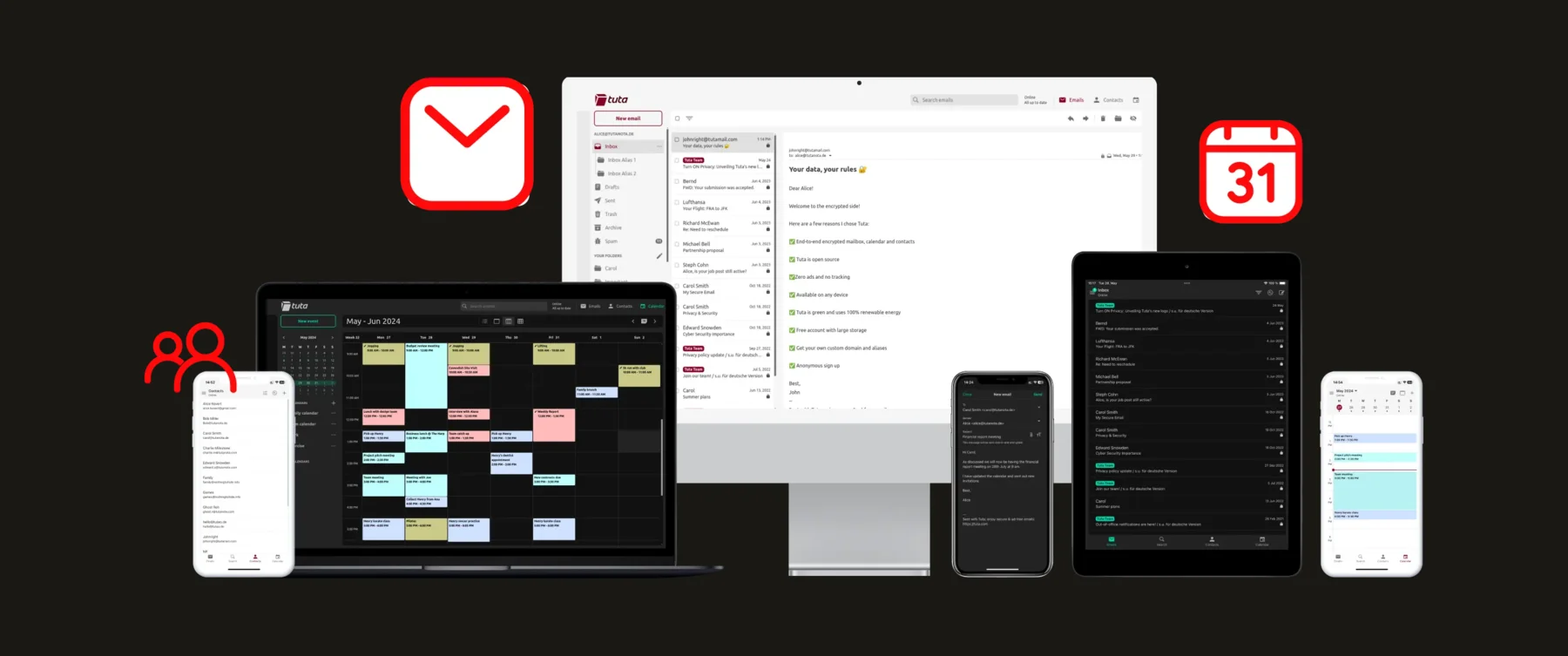
Tuta review
Tuta is an encrypted email service from Hanover, Germany: the most obvious alternative to Proton Mail, encrypting more of your mail but only through Tuta’s own apps.
Who is this for? Anyone moving away from Gmail or Outlook who wants an encrypted mailbox from an EU provider, and who is happy to use Tuta’s own apps instead of a desktop email client like Thunderbird. Email is structurally less secure than Signal for sensitive conversations — see Setting up Signal for context.
Tuta (called Tutanota until November 2023) is an encrypted email service run by Tutao GmbH in Hanover, Germany. It’s the most obvious alternative to Proton Mail: a similar idea, but a different design, with more of your mail encrypted and less flexibility in how you read it.
What Tuta protects
Encrypted mailbox: Tuta encrypts everything stored in your mailbox, including your contacts and calendar. Tuta itself can’t read the content of your mail.
Subject lines too: when you send an email, Tuta encrypts the subject, the body and the attachments. This is the clearest difference from Proton Mail, where the subject line is not end-to-end encrypted.
End-to-end encryption between Tuta users: mail between two Tuta addresses is encrypted end-to-end automatically. Since 2024 Tuta uses its own protocol, TutaCrypt, which according to Tuta combines classic algorithms (AES-256, x25519) with a post-quantum one (Kyber-1024). That protects today’s mail against someone who stores it now and tries to decrypt it with a future quantum computer.
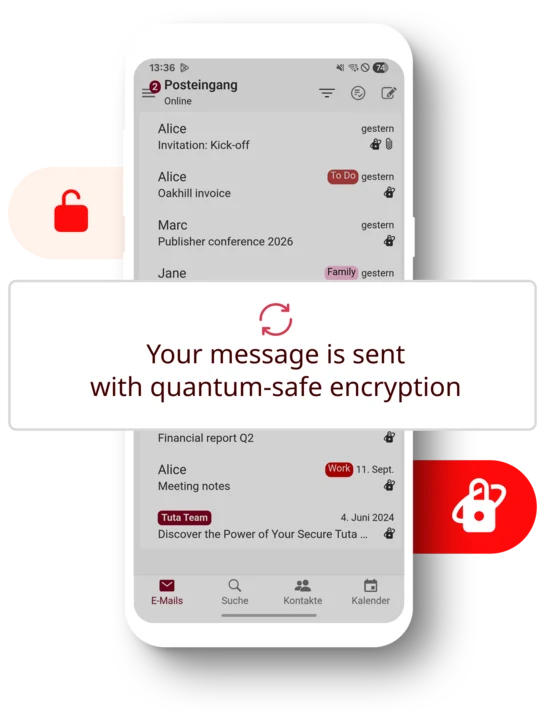
Tuta’s own illustration of its mobile app (German interface) with the message “Your message is sent with quantum-safe encryption”. Image: Tuta.
Encrypted mail to people outside Tuta: you can send an encrypted email to a Gmail or Outlook address by setting a password for that message. The recipient opens it in their browser with that password, which you have to share with them another way (in person, or over Signal).
No IP logging by default: Tuta says it doesn’t log IP addresses when you log in or send mail, and strips IP addresses from outgoing mail. The exception is covered under Caveats below.
EU jurisdiction: Tuta is a German company with servers in Germany, so it falls under the GDPR and German law. For readers in the EU that means the same data-protection rules as at home, without the open question hanging over Proton’s Swiss base.
What Tuta does NOT protect
Metadata: Tuta can see who sends mail to whom, and when (the sender address, the recipient address and the date). It says so itself.
Normal mail to and from other providers: unless you use the password option above, mail you send to a Gmail address, and all mail you receive from outside Tuta, is not end-to-end encrypted. Tuta encrypts it for storage once it arrives, but the other provider has a readable copy.
Specifications
| Property | Value |
|---|---|
| Company | Tutao GmbH, Hanover (Germany) |
| Servers | Germany |
| Encryption | TutaCrypt: AES-256 + x25519 + Kyber-1024 (post-quantum) |
| Encrypted subject lines | Yes |
| E2E encryption | Automatic between Tuta users; password-protected mail to others |
| Open source | Yes, all clients (GPLv3) |
| Free plan | 1 GB, one address, one calendar |
| Revolutionary | €3/month billed yearly (€36/year, about $40); 20 GB, 15 extra addresses, 3 custom domains |
| Legend | €8/month billed yearly (€96/year, about $106); 500 GB, 30 extra addresses, 10 custom domains |
| Currency | Euros for everyone, including US customers (in-app subscriptions via the App Store or Google Play are priced by the store) |
| Payment | Credit card, PayPal (in the apps also via the App Store or Google Play); gift cards bought with Bitcoin, Monero or cash via Proxystore |
| IMAP / desktop mail clients | No — Tuta’s own apps only (the Thunderbird add-on just opens the Tuta web app in a tab) |
| Apps | Web, Windows, macOS, Linux, Android (also on F-Droid), iOS |
| 2FA | TOTP and security keys (U2F) |
Monthly billing costs more: about €3.60 (about $4) for Revolutionary and €9.60 (about $11) for Legend.
No IMAP: you use Tuta’s own apps
Tuta deliberately doesn’t support IMAP, POP3 or SMTP, so Thunderbird, Apple Mail or Outlook can’t fetch or send your Tuta mail. Its reasoning is that a third-party client would need the mail decrypted first, which breaks the encryption model. There’s also no equivalent of Proton Bridge.
Since February 2026 Tuta offers Tuta Mail and Tuta Calendar add-ons for Thunderbird, but they only open the Tuta web app in a Thunderbird tab. Your mail doesn’t land in Thunderbird’s own folders, filters or search, and Tuta itself notes that the add-on doesn’t show notifications or import mail.
Tuta does have its own open-source desktop apps for Windows, macOS and Linux, with offline access. If you like the web or phone apps, you’ll hardly notice. If you’ve built your email habits around Thunderbird, filters and all, this is the deciding factor.
Tuta vs Proton Mail
| Tuta | Proton Mail | |
|---|---|---|
| Based in | Germany (EU) | Switzerland (moving most servers out of Switzerland, per Proton) |
| Subject lines encrypted | Yes | No |
| Post-quantum encryption | Yes, by default (TutaCrypt) | Opt-in since May 2026 |
| Encryption standard | Own protocol | PGP (works with other PGP users) |
| Desktop email clients (IMAP) | No | Yes, via Proton Bridge (paid plans) |
| Import from Gmail | File import (.eml/.mbox), Legend plan, desktop app | Built-in import tool |
| Cheapest paid plan | €3/month (yearly) | ~€4 / $4 a month (yearly) |
| Extra services | Calendar, contacts | Calendar, Drive, VPN, Pass |
| Anonymous payment | Gift cards via Proxystore (Bitcoin, Monero, cash) | Bitcoin or cash by post |
Pick Tuta if you want an EU provider, more of your mail encrypted (subject lines included) and a cheap paid plan, and you’re fine using Tuta’s own apps.
Pick Proton Mail if you want to keep a desktop email client, need PGP to talk to other PGP users, or want the wider Proton set of services (VPN, Drive, Pass) under one account.
For most people either one is a large step up from Gmail. The difference between them is much smaller than the difference between either of them and a free big-tech mailbox.
Moving from Gmail
The simplest route is the same as for any new provider: set up forwarding in Gmail to your new Tuta address, then change your address at services one at a time. Tuta links step-by-step forwarding guides for Gmail, Outlook, GMX and others.
Bringing your old mail across is less smooth than with Proton. Tuta imports mail files (.eml or .mbox), not a direct Gmail connection, and only on the Legend plan, in the desktop app. You first export your mail from Gmail (Google Takeout gives you an .mbox file) and then import that file into Tuta.
Caveats
Free accounts are deleted after six months of inactivity: if you don’t log in for six months, the free account and all its mail are deleted permanently. Fine for an address you use; risky for a backup address you rarely open.
Signing up over a VPN or Tor may be delayed: Tuta says new accounts are sometimes held for manual approval to fight spam, and that this often affects sign-ups over VPNs or Tor.
Free accounts can’t be recovered if you lose your second factor: Tuta’s support can only help on paid plans with a credit card or PayPal on file. On the free plan, save your recovery code somewhere safe. Lose both your password and your second factor, and even the recovery code can’t help: it replaces one of the two, not both.
German courts can order monitoring: in 2020 a Cologne court ordered Tuta to build a way to monitor one account used in an extortion attempt. That covered only future unencrypted mail to and from that account; Tuta said it cannot decrypt end-to-end encrypted mail, not even under the order. Tuta also says it logs IP addresses for individual accounts only for serious crimes and only after a German court order. It publishes a transparency report every six months. As with Proton: the encryption protects what you write, not who you are.
Email is inherently old and insecure: the protocol wasn’t designed for privacy. Tuta does a lot within those limits, but for truly confidential conversations Signal is structurally better.
Pros and cons
Pros
- Encrypts subject lines as well as content and attachments
- Post-quantum encryption (TutaCrypt) for mail between Tuta users
- German company with servers in Germany — GDPR and EU jurisdiction
- Cheap paid plans (from €3/month billed yearly, about $3.32), open-source clients, no phone number needed at sign-up
- Encrypted contacts and calendar included
Cons
- No IMAP: no Thunderbird, Apple Mail or Outlook, and no bridge
- Its own protocol instead of PGP, so no encrypted mail with PGP users outside Tuta
- Mail import only as files, only on the Legend plan
- Free accounts are deleted after six months without a login
- Sender, recipient and date stay visible to Tuta, as with every email provider
Getting started
Already have a Tuta account? Skip step 1. In Settings → Login, click the pencil icon next to the Recovery code field: if the menu offers Set up instead of Show, you don’t have one yet; create it and store it safely. Then carry on with step 2.
1. Create an account
Sign up at tuta.com. No phone number is needed. The last sign-up screen shows your 64-character recovery code (you can copy it or download it as a PDF); tick the box that you’ve saved it and continue. On the free plan it’s your only way back in if you lose your password or second factor.
2. Enable 2FA
- Go to Settings → Login. Under Second factor authentication, click the + button (Add second factor) and enter your password.
- Under Type, choose Authenticator (TOTP) for an authenticator app (such as Aegis on Android), or Security Key (U2F) for a security key. Tuta preselects the security key wherever your browser or app supports one.
- Give it a Name. For an authenticator app, scan the QR code (or copy the Secret), type the code it shows into Authenticator code and click Save. For a security key, follow the prompt to touch the key, then Save.
- Tuta then shows the Recovery code dialog. Click Show (or Set up if you have none yet), enter your password and make sure the code is stored safely.
Tuta recommends adding more than one second factor (for example the authenticator app and a security key), so losing one doesn’t lock you out.
3. Install the apps
Use the desktop app if you don’t want to work in a browser tab; it also works offline. On Android the app is also available on F-Droid.
4. Forward Gmail and move your accounts
Set up forwarding from your old address to Tuta, then change your email address at important services one at a time, starting with your bank and your password manager.
5. Encrypt mail to non-Tuta contacts when it matters
As soon as you add a recipient outside Tuta, the message is Confidential by default (the closed lock in the toolbar) and Tuta asks for a Password for that address. Enter a password and share it another way, not by email. Tuta saves the password with the contact for next time. Clicking the lock switches the message to Not confidential, which sends it as normal mail; the default for this is under Settings → Email → Default delivery.
Conclusion
Tuta is a strong choice for anyone, especially in the EU, who wants an encrypted mailbox from an EU provider at a low price. It encrypts more than Proton Mail does (subject lines included) and uses post-quantum encryption. The price is flexibility: you use Tuta’s own apps, not your own mail client.
If you rely on Thunderbird or PGP, choose Proton Mail. Otherwise, Tuta is at least as good a pick.
Next step
Chosen Tuta?
- Secure email without overkill — when an encrypted mailbox is enough, and when you need more
Similar options
- Proton Mail review — the Swiss alternative, with PGP and a desktop bridge
- Email aliases — a separate address for every shop and newsletter, which works alongside Tuta
Want to go further?
- Signal and Molly review — for sensitive conversations outside email