Setting up Signal: basic security and beyond
Who is this for? For anyone who just installed Signal or has been using it without going through the settings. The basic steps suit the ordinary user. The further steps — Molly, Tor, a separate phone number — are for people who make a deliberate choice based on a higher risk profile.
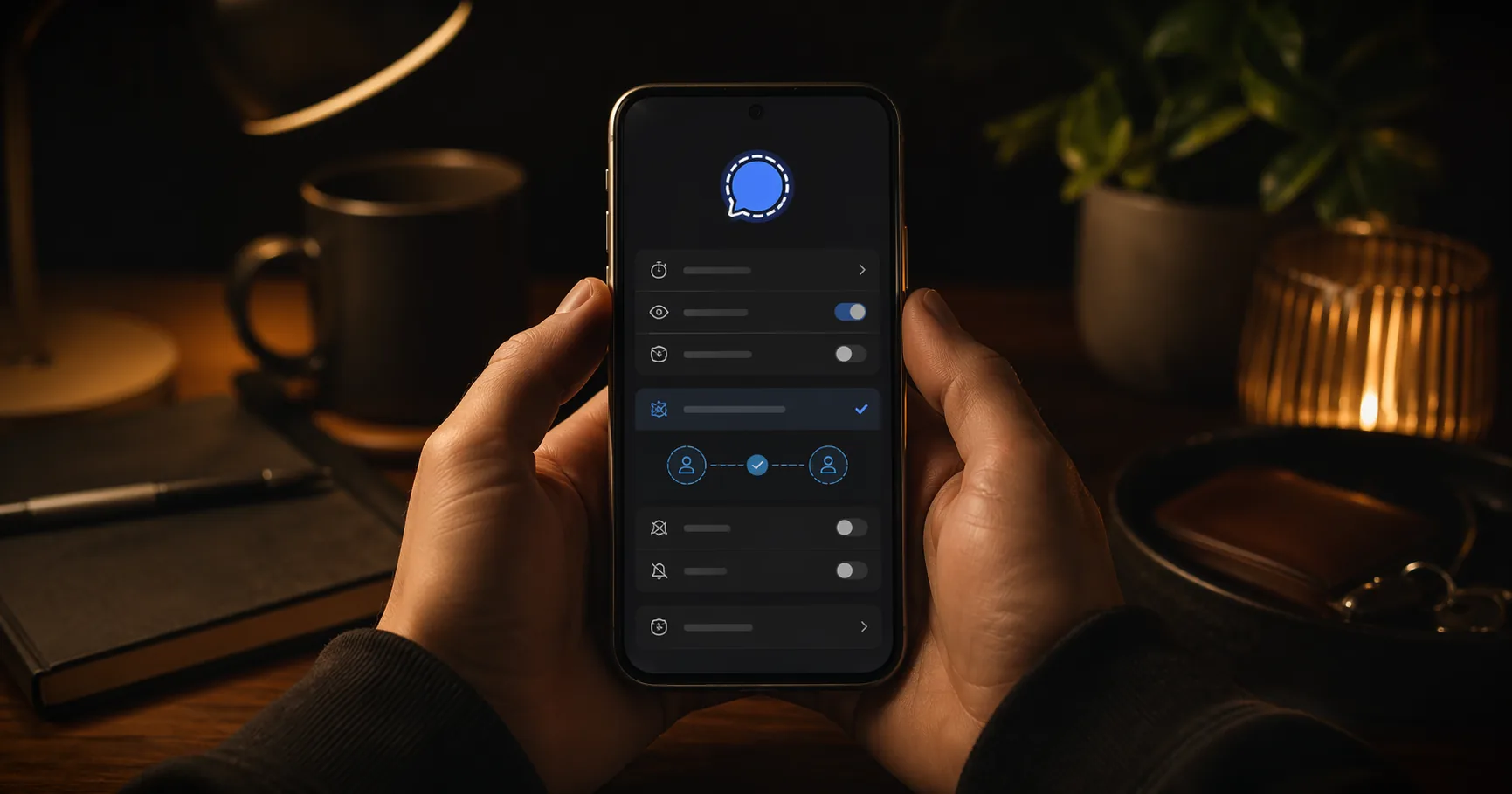
Setting up Signal: basic security and beyond
Who is this for? For anyone who just installed Signal or has been using it without going through the settings. The basic steps suit the ordinary user. The further steps — Molly, Tor, a separate phone number — are for people who make a deliberate choice based on a higher risk profile.
You do not need to do everything at once. Stop after step 2 if your situation allows it.
What you gain, and what it costs
Setting up Signal properly takes about 10 to 15 minutes. In return:
- messages that disappear after a time you choose
- a phone number that is not automatically visible to everyone
- notifications that show no message content on the lock screen
- verification that you are actually talking to the person you think you are
The further steps take more — an extra app, a separate number, or Tor routing — and are only worth it if your situation calls for them.
Step 1: Basic settings
Set disappearing messages as default
Signal can automatically delete messages after a set time. This is off by default. Turn it on for any conversation that matters.
Set a default for new conversations:
- Open Signal → tap your profile picture (top left)
- Go to Privacy → Default timer for new chats
- Choose a default — 1 week is a reasonable balance for most people
You can also set the timer per conversation: open a conversation → tap the name at the top → Disappearing messages.
Hide your phone number
Signal requires a phone number to register. But your number does not have to be visible automatically to everyone who messages you.
- Open Signal → tap your profile picture
- Go to Privacy → Phone number
- Set Who can see my number to Nobody
- Set Who can find me by number to Nobody
After this, people can only reach you via your username — not automatically via your phone number.
Restrict notifications
Message content on the lock screen is a risk if someone else can see your phone.
- Open Signal → Settings → Notifications
- Set Show to No name or message
You still get a notification, but without the sender name or message content.
Screen security
- Open Signal → Settings → Privacy
- Enable Screen security — Signal will now appear as a blank window in the app switcher
Step 2: Check your security
Verify safety numbers
End-to-end encryption only holds if you know you are talking to the right person. Signal gives each conversation a unique safety number.
- Open a conversation → tap the name at the top
- Tap View safety number
- Compare the number or QR code with the other person — outside Signal (call them, meet in person, or use a different channel)
Verify this for conversations that genuinely matter. Not for every casual contact.
Check linked devices
If you use Signal on a computer or tablet as well, check regularly which devices are linked.
- Open Signal → Settings → Linked devices
- Remove any device you do not recognise
Stopping point
For most readers, this is enough. Disappearing messages, a hidden phone number, silent notifications, and verified contacts form a solid baseline.
You do not need to read the rest of this guide if your situation does not call for it.
Step 3: Molly-FOSS — for those who want to go further
Molly is an independently maintained fork of Signal for Android. It adds security options that Signal itself does not offer. This is not the standard recommendation for ordinary users — it is a deliberate choice for people on GrapheneOS, those who want no Google components, or those who need extra local protection.
What Molly adds:
- Passphrase encryption: extra protection for the local Signal database
- RAM shredding and automatic lock: sensitive data is wiped from memory
- No Google FCM: Molly-FOSS runs without Firebase Cloud Messaging — notifications go through WebSocket or UnifiedPush rather than Google servers
- SOCKS5 / Tor support: route traffic through Orbot
Molly vs Molly-FOSS:
| Version | Google components | Recommended for |
|---|---|---|
| Molly | Yes (optional FCM) | Users who want WebSocket or UnifiedPush but want FCM as a fallback |
| Molly-FOSS | No | GrapheneOS, LineageOS without GApps, or any profile that is deliberately Google-free |
Installing Molly-FOSS:
On GrapheneOS: add the official Molly-FOSS repository via F-Droid → Settings → Repositories → add https://molly.im/fdroid/foss/fdroid/repo. Or install via Accrescent if you use a Google-free app store.
See also the F-Droid guide and GrapheneOS first setup for working with third-party repositories.
Switching from Signal to Molly:
Molly supports import from your Signal backup. On Android, create a local Signal backup via Settings → Backups → On-device backups → Create backup, then install Molly-FOSS and restore that backup on first launch.
Step 4: Anonymity — if that is actually your goal
Signal hides your number from other users if you followed step 1. But Signal still knows which number is linked to your account, and if someone already has your number, they can find you with it unless you explicitly block that.
For real separation between identity and number:
- Use a separate number that is not registered to your name and that you have not already linked to other accounts. This can be a prepaid SIM or a VoIP number that can receive verification SMS or calls.
- Use Molly or Molly-FOSS via Orbot (Tor) if you need Tor transport: Molly supports SOCKS5 and Tor via Orbot. Signal’s own proxy feature is mainly for TLS proxies and censorship circumvention, not as a general Orbot/SOCKS5 anonymity route.
Note: this makes Signal use harder to trace, but it does not automatically make every conversation anonymous. If the other party knows who you are, a separate number changes little about the relationship.
When is Signal not enough?
Signal is strong, but it is not the right fit for every situation.
- Anonymous communication with unknown contacts: consider SimpleX — no phone number, no central identifier
- Decentralised group communication: consider Matrix via Element
- Communication where even the contacts must not know you are communicating: this is a higher-risk profile that goes beyond app settings
Do not choose Signal because it sounds like the most privacy-friendly option. Choose it based on who your contacts are, what you need to protect, and how much friction you can sustain.
Next step
Go further
- Recommended privacy apps — Signal in the context of your full app stack
- Which password manager should you choose? — the same approach applied to your password manager
- Setting up Proton Mail — and to your email account
- F-Droid guide — open-source apps without Google Play
- SimpleX Chat guide — if you need stronger anonymity than Signal provides
Reviews
- Signal and Molly review — background, caveats, and profile fit