iOS Lockdown Mode: who should turn it on, and what it costs
Lockdown Mode is an optional Apple setting that switches off features attackers abuse against people who may be personally targeted. It makes your iPhone behave differently on purpose, so the question is whether you need it.
iOS Lockdown Mode: who should turn it on, and what it costs
Lockdown Mode is an optional Apple setting that switches off features attackers abuse against people who may be personally targeted. It makes your iPhone behave differently on purpose, so the question is whether you need it.
Who this guide is for
Anyone with an iPhone, iPad or Mac who wonders whether Lockdown Mode is for them, and anyone who already turned it on and wants to live with it. Apple describes it as “an optional, extreme protection that’s designed for the very few individuals who, because of who they are or what they do, might be personally targeted by some of the most sophisticated digital threats.” It adds: “Most people are never targeted by attacks of this nature.”
A real case shows what “targeted” means. In September 2023, Citizen Lab reported a zero-click exploit chain (BLASTPASS) used to deliver NSO Group’s Pegasus spyware, found on the iPhone of a person working for a civil society organisation in Washington DC. Citizen Lab wrote that Lockdown Mode blocks that particular attack, which Apple’s security team confirmed to them, and urged “everyone who may face increased risk because of who they are or what they do” to turn it on.
What this guide does not solve
- Stolen passwords and account takeover. Lockdown Mode is aimed at spyware that attacks the device itself. Nothing on Apple’s list of changes covers your Apple Account or what you keep in iCloud. It does not replace strong, unique passwords and two-factor authentication; see the two-factor authentication guide.
- Finding out whether a phone is already compromised. It is a protection, not a scanner, and Apple does not say it removes spyware that is already there. For signs of spyware, see the spyware detection guide.
- Every attack. Apple says the mode reduces the attack surface, not that it stops all spyware. In March 2026 Apple told TechCrunch it knew of no successful mercenary spyware attack on a device with the mode on, and the head of Amnesty’s Security Lab said his team had seen no evidence of one on an iPhone. That is what they have seen, not proof: a bypass could go unnoticed. Citizen Lab wrote in 2023 that “any one security measure is unlikely to blunt all targeted spyware attacks.”
- Someone who has your device in their hands. On physical access, Apple’s list only covers wired connections (below). It says nothing about someone who knows your passcode or makes you unlock.
- An out-of-date phone. Apple says to update your devices to the latest software before turning it on, to get the complete set of protections. The mode closes off features; it does not patch flaws, so security updates still matter. Citizen Lab’s advice on BLASTPASS was to do both. Lockdown Mode exists from iOS 16, iPadOS 16, watchOS 10 and macOS Ventura, with more protections from iOS 17, iPadOS 17 and macOS Sonoma.
- Everyday privacy. Ad tracking, app permissions and location settings are a different job; see the iPhone privacy settings.
What you gain, and what it costs
Gain: in Apple’s words, a “sharply” reduced attack surface. Apple’s own list of what changes:
- Messages: most attachment types are blocked, other than certain images, video and audio. Links and link previews are unavailable.
- Web browsing: certain complex web technologies are blocked (Apple names just-in-time JavaScript compilation as one), which can make sites load slower or not work. Web fonts may not display and images may show as a missing-image icon.
- FaceTime: incoming calls are blocked unless you called that person in the past 30 days. SharePlay and Live Photos are unavailable, and so is handing a FaceTime call over to another device (Continuity Handoff).
- Apple services: invitations (for example to manage a home in the Home app) are blocked unless you invited that person before. Focus and its status do not work as expected, and Game Center is disabled.
- Photos: shared albums are removed from the Photos app, new invitations are blocked, and location information is left out when you share photos.
- Wired connections: to connect an accessory or computer, the iPhone or iPad must be unlocked, though Apple says some connections are still allowed for a short time after the mode goes on. A Mac laptop with Apple silicon must be unlocked and needs your explicit approval.
- Wireless: the device will not join non-secure Wi-Fi networks automatically and disconnects from one when you turn the mode on. 2G and 3G are turned off on iPhone and iPad.
- Configuration profiles: they can’t be installed, and the device can’t be enrolled in Mobile Device Management or supervision. That includes a DNS profile for encrypted DNS (see the iPhone privacy settings).
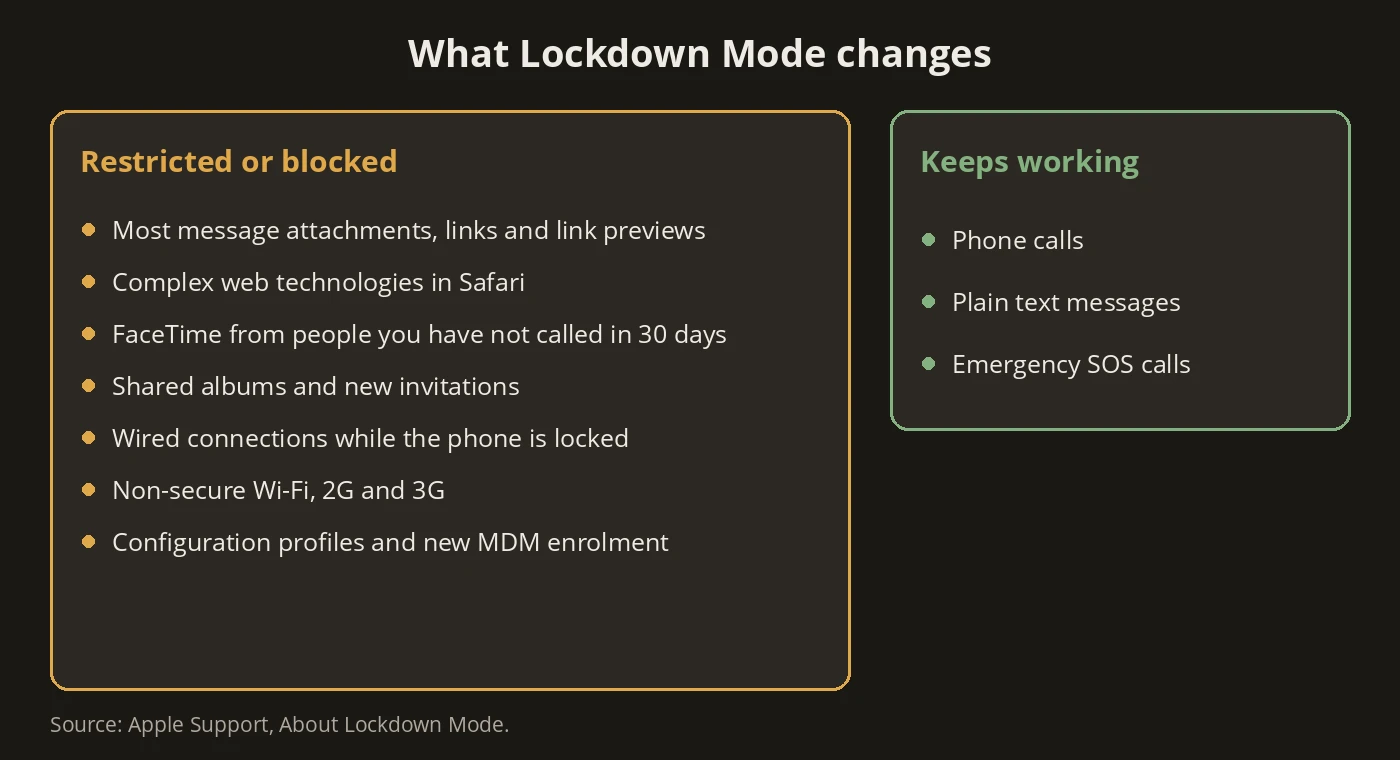
Apple’s security guide also names Mail and background services among what is affected, without details. Apple adds that phone calls and plain text messages keep working (though incoming calls no longer ring on a paired Apple Watch), and emergency features such as SOS calls are not affected. Apple also set up a bounty category for Lockdown Mode bypasses, with payouts then up to US$2 million (announced in July 2022); that tells you Apple treats this mode as a serious line of defence, not a guarantee.
Cost: everyday friction, described below.
When this is overkill
For most readers it is. Apple says so itself: most people are never targeted. If you want a better-protected iPhone without changing how it works, the iPhone privacy settings and two-factor authentication get you most of the value at no daily cost. Reach for Lockdown Mode when your work, position or situation makes you a realistic target, not because the word “extreme” sounds safer.
The practical default
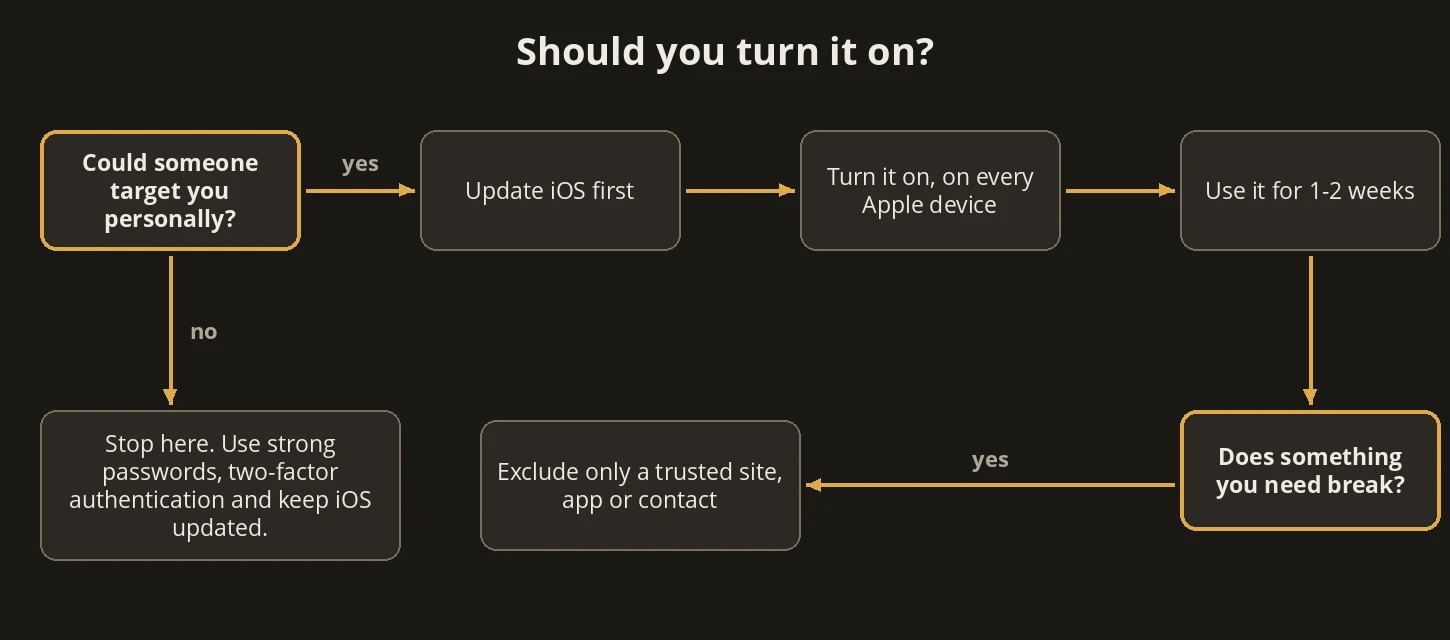
- Update first. Install the latest iOS (and other Apple software) before you turn it on.
- Turn it on. Settings → Privacy & Security → scroll down to Lockdown Mode → Turn On Lockdown Mode → Turn On Lockdown Mode again → Turn On & Restart, then enter your passcode. On a Mac: Apple menu → System Settings → Privacy & Security → Lockdown Mode → Turn On → Turn On Lockdown Mode → Turn On & Restart, then enter your login password.
- Do it on every Apple device you use. Apple says all your devices need it for complete protection. It is turned on separately for iPhone, iPad and Mac. An Apple Watch (watchOS 10 or later) follows the paired iPhone and can’t be switched on the watch itself. You get prompts to turn it on for your other supported devices.
- Live with it for a week or two as your real phone. Safari shows a banner while it is on, and you may get a notification when an app or feature is limited. Note what you actually miss.
- Exclude sparingly, and only what you trust. Apple warns that excluding a website, app or contact reduces the protection. These options appear only while the mode is on. For a site: in Safari tap the Page Menu → Website Settings and turn Lockdown Mode off for that site (Mac: Safari menu → Settings for [website], deselect Enable Lockdown Mode); that site is then no longer limited by the WebKit restrictions. For an app (iPhone and iPad only): Settings → Privacy & Security → Lockdown Mode → Customize Web Sites, then switch the app off, which removes the web content limits for that app; only apps you opened since turning the mode on, and that have limited functionality, appear in the list. Do this only when you have to. Already using the mode? Check what you excluded earlier under Customize Web Sites → Excluded Safari Websites. On iOS, iPadOS or macOS 27 or later you can also exclude a contact, which turns off the messaging limits for that person only: Settings → Privacy & Security → Lockdown Mode → Customize Contacts → Add Contact. On a Mac: Privacy & Security → Lockdown Mode → Customize Contacts → the plus button. Message limits return automatically if you remove the contact, or if their number or email changes, in which case you get a notification. Our reading: if that person’s account is taken over, the limits stay off for messages from it.
Stop there if it works for your life. If it breaks something you truly need and cannot work around, the honest answer is sometimes not to use the mode, not to exclude everything.
Friction you will feel
- Attachments and links in Messages. Someone sends a document in Messages and it does not open, or a link can’t be used and shows no preview. Ask for it another way (email, a file share) if you trust the sender, or, on iOS 27 or later, exclude that contact.
- First calls from new contacts. FaceTime calls from people you haven’t called in 30 days are blocked. If you are expecting one, call them first.
- Shared albums. They disappear from your Photos app. Apple says you can still view them on other devices that do not have Lockdown Mode on.
- Websites. Some load slower or look wrong. That is the intended trade.
- Work phones. While the mode is on, new configuration profiles can’t be installed and the device can’t be enrolled in Mobile Device Management. Apple says a phone that was already enrolled before you turned the mode on stays managed, and administrators can still install and remove profiles on it. To install a profile yourself, turn the mode off, install it and turn the mode back on. Apple also says Lockdown Mode is not something an MDM administrator can configure for you. See work and personal separation on iOS.
Stronger setup, only if it fits
Lockdown Mode is not the top of the ladder, but it is the step before changing platform. Some higher-risk profiles do better with a different operating system; see do I need to switch phones? and the GrapheneOS hardening guide. Try Lockdown Mode, sound account habits and a hardware security key first. Not every higher-risk profile needs a platform switch.
One naming trap: GrapheneOS also has a “Lockdown” option in the power menu. That is a different thing, a quick lock that turns off biometrics until your next unlock, not a hardening mode.
Stopping point
You updated your devices, turned Lockdown Mode on for each, lived with it for a couple of weeks, and kept exclusions to a minimum. If your risk is ordinary, the stopping point is earlier: skip Lockdown Mode, use strong passwords and two-factor authentication, and keep iOS updated.
Next step
Protect the rest of your setup
Cover and logo panel: Apple and Citizen Lab marks via Wikimedia Commons (public domain), GrapheneOS mark via Wikimedia Commons (MIT licence); the Apple and GrapheneOS marks are recoloured off-white for the dark background. The logos are trademarks of their owners and their appearance here does not imply endorsement. Diagrams: PrivacyGear, based on Apple Support.
Sources: Apple Support, “About Lockdown Mode” (support.apple.com/en-us/105120, published 14 September 2026); Apple’s iPhone, iPad and Mac User Guides, versions 27, and Personal Safety User Guide (read 6 November 2026); Apple Platform Security, “Lockdown Mode security”; Apple Newsroom, “Apple expands industry-leading commitment to protect customers from mercenary spyware”, 6 July 2022; Citizen Lab, “Triple Threat: NSO Group’s Pegasus Spyware Returns in 2022 with a Trio of iOS 15 and iOS 16 Zero-Click Exploit Chains”, April 2023; Citizen Lab, “BLASTPASS: NSO Group iPhone Zero-Click, Zero-Day Exploit Captured in the Wild”, 7 September 2023; TechCrunch, “Apple says no one using Lockdown Mode has been hacked with spyware”, 27 March 2026.