Separating work and personal on iPhone: Apple Account, Focus and browser
Who this guide is for: Employees and freelancers using one iPhone for both work and personal life who want to keep the two worlds clearly separated without carrying a second phone.
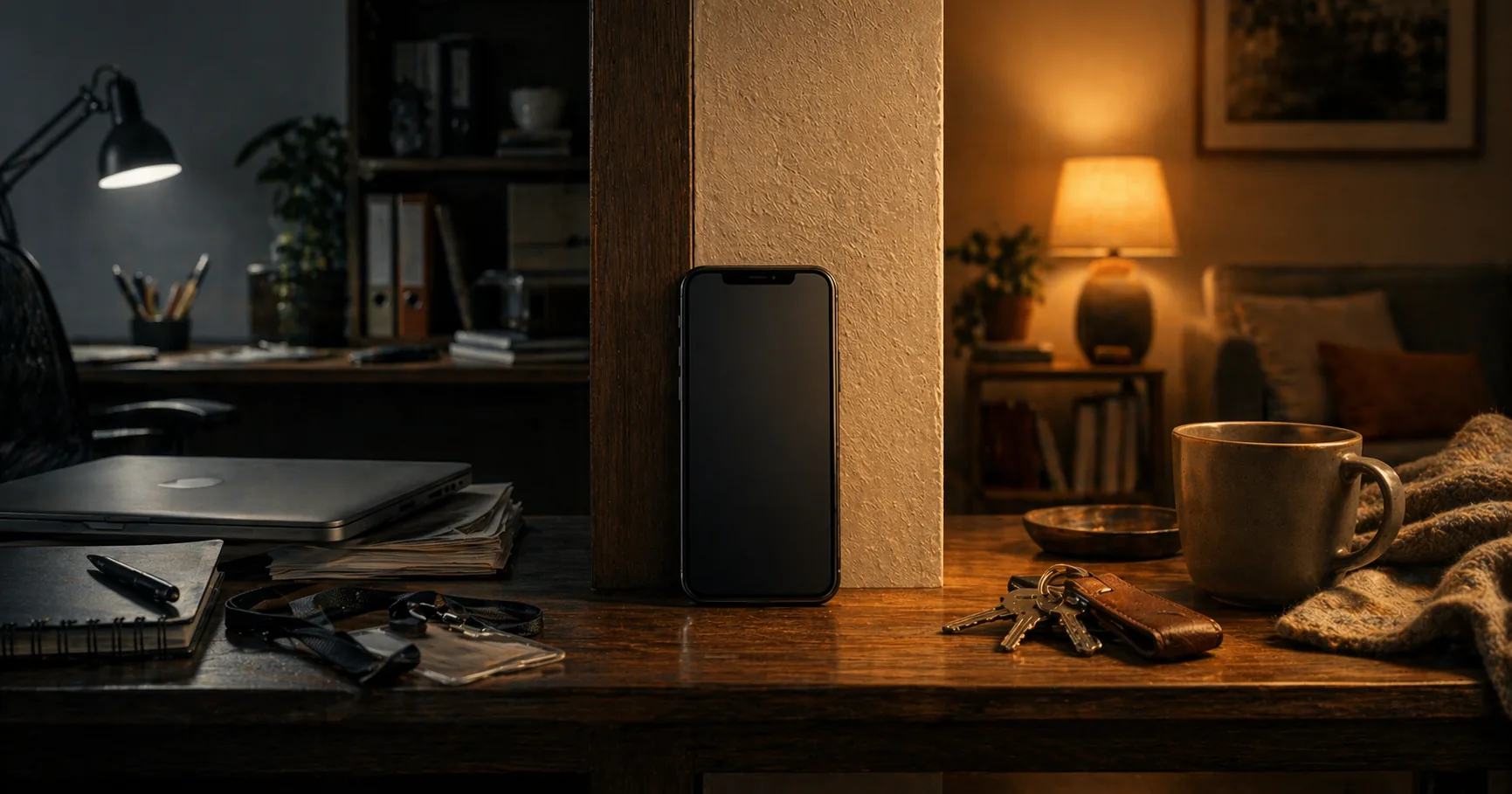
Separating work and personal on iPhone
Who this guide is for: Employees and freelancers using one iPhone for both work and personal life who want to keep the two worlds clearly separated without carrying a second phone.
You have one iPhone for work and personal use. That’s practical — but it means work files, work email and work contacts sit on the same device as your personal data. And if your employer installs an MDM profile, they gain access to part of your device.
These are the three layers that keep them separated.
What you gain, and what it costs
You gain cleaner boundaries: work email, work files, browser logins, and notifications are less likely to spill into your personal life. That reduces the chance of putting work data into your personal cloud or drifting back into work outside working hours.
The cost is discipline. You have to keep accounts consciously separated, actually use a dedicated work browser or profile, and accept that iOS does not give you an Android-style work profile where everything lives in an automatically separate container.
When this is overkill
If your employer already gives you a separate work phone, that is usually the cleanest answer. And if your work use is limited to the occasional calendar invite or one email account, you do not need every layer in this guide. This setup is most useful when work and personal use genuinely overlap every day on the same iPhone.
Layer 1 — Separate work account or Managed Apple Account
An Apple Account (called “Apple ID” before iOS 18) is more than a login. It determines which apps, documents and iCloud data belong to you.
Option A: User Enrollment or account-driven enrollment (best BYOD option)
Apple’s supported BYOD separation model is Managed Apple Account + User Enrollment. In that setup:
- Your personal Apple Account stays signed in for your personal iCloud, photos, and App Store use
- Your employer adds a Managed Apple Account and managed work apps through MDM
- Work apps and work accounts stay under the managed side, while your personal Apple Account stays personal
Ask IT specifically whether they support User Enrollment or account-driven enrollment for personal devices. That is the Apple path designed to separate work and personal data on one iPhone.
Option B: No work Apple ID available
Add your work accounts manually as separate accounts:
- Settings → Apps → Mail → Mail Accounts → Add Account — add your work email (Microsoft Exchange, Google Workspace, or IMAP). On iOS 17 and earlier this is Settings → Mail → Accounts.
- Settings → Apps → Calendar → Accounts — same approach for work calendar
- Disable iCloud sync for Mail and Calendar if you don’t want work data ending up in your personal iCloud
Layer 2 — Separate browser for work
Browser history, cookies and login sessions mix work and personal in ways that aren’t visible.
Safari browser profiles (iOS 17 and later)
Settings → Apps → Safari → New Profile (on iOS 17 this is Settings → Safari → New Profile)
Create a profile: “Work”. Each profile has:
- Its own tab history
- Separate cookies and logged-in sessions
- Its own start page
Your personal account on a work site (LinkedIn, GitHub) is then separate from your work login. Clear your work Safari profile at the end of the work day — this closes all work-related sessions.
Alternative: separate browser app for work
Install Firefox as your work browser and use Safari for personal (or vice versa). Simpler than profiles, but less integrated.
Layer 3 — Focus mode for strict separation
Focus mode isolates apps, notifications and home screens per context.
Settings → Focus → New → Work
Configure:
- Allowed notifications: work apps only (Mail, Calendar, Teams/Slack) — personal apps send no notifications
- Apps: create a separate home screen with only work apps
- Automatic: activate based on time (e.g. Mon–Fri 09:00–17:00) or location (office address)
Settings → Focus → Personal
- Block work notifications outside working hours
- Hide work apps from the home screen
Focus mode solves the “always reachable” problem without a second phone.
When your employer installs an MDM profile
MDM (Mobile Device Management) is management software organisations install on devices. On a work-issued device this is normal — on your personal iPhone it’s a different consideration.
What MDM can do on a personal device:
- Install and remove work email and apps
- Enforce a PIN requirement and encryption
- Remotely wipe work data if the device is lost
What MDM cannot see on a properly configured personal device:
- Your personal apps, photos or messages
- Your personal browsing history
User Enrollment vs. Device Enrollment: iOS supports “User Enrollment” — a lighter MDM variant specifically for personal devices (BYOD). This separates work data into a separate encrypted container and limits what the employer can see. Ask your IT department whether they use User Enrollment.
If your employer wants full Device Enrollment on your personal iPhone, you have the right to refuse and ask for a work device instead.
Separating files
Work: use the Files app with only the work environment (SharePoint, OneDrive work, or a work-specific Proton Drive account).
Personal: personal iCloud Drive, or a separate Proton Drive account.
Never mix work documents into your personal iCloud folder — if you ever change jobs, you want a clean separation.
Checklist
- Work email added as a separate account (not synced via iCloud)
- Work calendar added as a separate account
- Safari work profile created (iOS 17 and later)
- Work Focus mode configured with a separate home screen
- Personal Focus mode blocks work notifications outside working hours
- Work files stored in work cloud, not personal iCloud
- MDM type checked with IT if applicable (User Enrollment vs. Device Enrollment)
Next step
Go further
- iPhone privacy settings — the broader iOS privacy baseline once separation is in place
- Android work profile guide — the same separation on Android
- Two-factor authentication guide — setting up 2FA on work and personal accounts
Profiles
- Profile: student or employee — threat model and approach