Setting up a GL.iNet travel router: VPN, DNS and guest network
Who this guide is for: Anyone who has or is considering a GL.iNet router — as a travel router for hotels and public networks, or at home as a more privacy-friendly replacement for a basic ISP router.
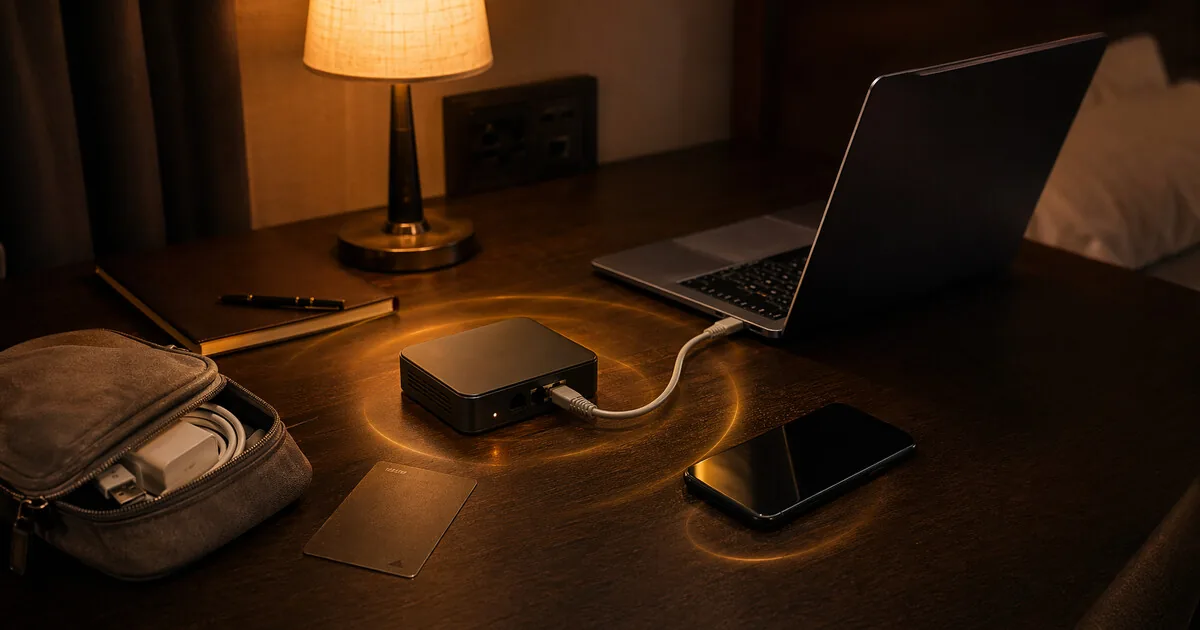
Setting up a GL.iNet travel router: VPN, DNS and guest network
Who this guide is for: Anyone who has or is considering a GL.iNet router — as a travel router for hotels and public networks, or at home as a more privacy-friendly replacement for a basic ISP router.
A GL.iNet router comes with OpenWrt pre-installed and its own admin panel. After basic setup you have a VPN connection that works for all connected devices, encrypted DNS, DNS filtering and an isolated guest network.
This guide works for all GL.iNet models: Beryl AX (MT3000), Flint 2 (MT6000), Slate AX, and others. The screens are the same.
What you gain, and what it costs
You gain central control. Instead of configuring VPN, DNS filtering, or guest access on every device separately, you do it once on the router and everything behind it benefits. That is especially useful while travelling or in homes with lots of devices.
The cost is extra management. You are adding a network layer you have to understand, update, and troubleshoot when something breaks. A badly configured router can also make it harder to tell where your traffic is really going.
When this is overkill
If you only want to protect your own laptop and phone on public Wi-Fi, a normal VPN app may be enough. A GL.iNet router becomes more worthwhile when you want this for multiple devices, want to enforce a guest network, or want more control at home than your ISP router gives you.
What you need
- A GL.iNet router
- A laptop or phone to configure it
- A VPN subscription with WireGuard support (Mullvad, ProtonVPN or your own server)
- About 30 minutes
Step 1 — First connection
Plug the router into power. Connect your laptop or phone via wifi to the network the router broadcasts — the name is on the bottom of the device, along with the default wifi password.
Open a browser and go to:
192.168.8.1
You’ll see the GL.iNet admin interface. Set a strong admin password. Store it in your password manager.
Step 2 — Internet connection
As a travel router (hotel, Airbnb, office):
Go to Internet → Repeater. Click Scan and select the wifi network at the location. Enter the password. The router connects and shares the connection.
All devices you connect to the GL.iNet router afterwards go through this connection — with all the settings you configure below.
At home:
Connect the WAN port to your existing router or modem via a network cable. The GL.iNet router then works as a second router behind your first.
Step 3 — Set up VPN (WireGuard)
This is the most important step. Once configured, all traffic from all connected devices automatically goes through VPN — without configuring anything per device.
Go to VPN → WireGuard Client.
Mullvad:
- Log in at mullvad.net → Devices → Generate WireGuard key
- Download the configuration file for a server of your choice (nearest to you)
- Back in GL.iNet → WireGuard Client → Add Profiles → Upload Config
- Upload the downloaded file
- Activate the connection
ProtonVPN:
- Log in at protonvpn.com → Downloads → WireGuard configuration
- Choose a server and download the configuration file
- Same steps as above
Your own WireGuard server: If you run a WireGuard server at home or on a VPS: export the client config and upload it.
Check that VPN is active: Go to ip.me from a connected device. The IP address should match the VPN server, not your own internet connection.
Enable kill switch: Go to VPN → VPN Dashboard and check the kill-switch settings for your active tunnel. In recent firmware, tunnel kill switch is usually active by default once the VPN tunnel is running. In some policy modes you can also enable a stricter option for non-VPN traffic.
Step 4 — DNS-over-TLS
Without encrypted DNS, DNS requests often still travel in readable form over the local network or to the router’s upstream resolver. With DNS-over-TLS they are sent encrypted. If your VPN provider forces its own DNS, this matters less or has to be solved inside the VPN configuration itself.
Go to Network → DNS.
Enable DNS Rebinding Attack Protection.
Enable Encrypted DNS. Choose a provider:
| Provider | Address | Blocks malware? |
|---|---|---|
| Quad9 | dns.quad9.net | Yes |
| Cloudflare | cloudflare-dns.com | No (privacy only) |
| Mullvad DNS | adblock.dns.mullvad.net | Yes |
Quad9 is the recommended choice: blocks known malware domains, no logging, based in Switzerland.
If you install AdGuard Home (step 5), configure DNS-over-TLS there instead of here.
Step 5 — AdGuard Home (optional but recommended)
AdGuard Home is a DNS filtering tool that blocks ads, trackers and malware domains for all devices on your network. It runs directly on the router.
Go to Applications → AdGuard Home → Install.
After installation: click Open AdGuard Home. You’re redirected to the AdGuard interface on port 3000.
Set DNS in AdGuard Home: Go to Settings → DNS settings → Upstream DNS servers. Enter:
tls://dns.quad9.net
Add filter lists: Go to Filters → DNS blocklists. The default AdGuard list is already active. Add if desired:
- OISD — broad filter list, few false positives
- Hagezi Multi Normal — extended tracker blocking
Check it’s working: Go to adblock-tester.com from a connected device. You should get a high score.
Step 6 — Guest network
A guest network is completely separated from your main network. Devices on the guest network cannot communicate with devices on your main network.
Use this for:
- Smart home devices (TV, speaker, thermostat)
- Visitors’ devices
- IoT devices whose software you don’t trust
Go to Network → Guest Network. Enable the guest network. Give it a different name than your main network. Set a separate password.
Make sure Client Isolation is on — this prevents devices on the guest network from communicating with each other.
If you want multiple separated zones such as work, IoT, and private, a guest network is only one extra segment. See network segmentation with VLANs for multiple isolated zones via LuCI.
Step 7 — Change wifi password and network name
The default wifi password is on the bottom of the router. Change it to something stronger.
Go to Wireless. Choose a network name (SSID) that doesn’t reveal anything about the device or location. Set a password of at least 16 characters.
Verification
After setup check four things:
| What | How | Expected result |
|---|---|---|
| VPN active | ip.me | IP of VPN server |
| DNS encrypted | AdGuard Home → Query Log | Requests visible |
| Malware blocked | adblock-tester.com | High score |
| Guest network isolated | Connect via guest, try 192.168.8.1 | No access to router |
Using it as a travel router
The advantage of a travel router: you set everything up once, and every location works the same.
In a hotel you connect the router to hotel wifi via Repeater. All devices you connect automatically go through VPN — your phone, tablet and laptop. You don’t need to configure anything separately on each device.
Some hotels require a login page (captive portal) before you get internet. In that case temporarily go through the router settings to the hotel network via a browser on the router, or use the Repeater function, connect first without VPN, confirm the captive portal, then enable VPN.
Keep firmware updated
GL.iNet releases regular firmware updates with security patches. Check occasionally via System → Upgrade.
Scheduled Tasks is meant for things like reboot schedules and Wi-Fi timing, not as a general auto-update feature. For a travel router you do not use often, it is better to check manually for firmware updates before each trip.
Next step
Go further
- Network segmentation at home: VLANs, guest networks, and isolating IoT — more separation at home than just VPN and a guest network
- Which network setup fits your profile? — overview of all options by threat level
- Network security for crypto holders — why the network matters for crypto too
- VPN: what it does and what it doesn’t — honest overview of VPN limitations
Reviews
- GL.iNet Beryl AX review — the travel router used for this kind of setup
- GL.iNet Slate 7 review — the newer Wi-Fi 7 travel router
- GL.iNet Flint 2 review — home router from the same family
- GL.iNet Flint 3 review — Wi-Fi 7 home router
- GL.iNet Brume 2 review — VPN gateway without Wi-Fi
- GL.iNet Brume 3 review — VPN gateway with 1,100 Mbps WireGuard
- ProtonVPN review — recommended VPN for the router