Setting up Proton Mail: account, 2FA, and the settings that matter
A new Proton Mail account works, but the defaults aren't the best. This guide sets up your account, two-factor authentication and the settings that actually matter.
Setting up Proton Mail: account, 2FA, and the settings that matter
A new Proton Mail account works, but the defaults aren’t the best. This guide sets up your account, two-factor authentication and the settings that actually matter.
Who is this for? For anyone who has created a Proton Mail account or is considering switching, and wants to configure it properly instead of staying on the default setup. Still unsure whether Proton Mail is the right choice? Read the Proton Mail review or Secure email without overkill first.
What you gain, and what it costs
Setting up Proton Mail properly takes about fifteen minutes. In return:
- an account that does not rely on a password alone, and that you cannot permanently lock yourself out of by forgetting your password
- clarity on what Proton already handles by default, so you don’t flip a setting that doesn’t need it
- a clear migration path from Gmail without missing messages
Migrating itself takes more time, depending on your mailbox size, and is only worth it if provider privacy genuinely matters to you.
Already have a Proton account? Skip step 1. If you saved a Recovery Kit when you signed up, you already have a recovery phrase; step 2 shows where to check that it is still active. The rest applies unchanged.
Menu names below are from Proton’s web app and support pages (November 2026). All settings live under Settings (the gear icon, top right) → All settings: the gear first opens a small quick-settings panel.
Step 1: Create your account
Go to proton.me and create a free account. Proton does not ask for your legal name, and a phone number is not part of normal signup.
Use Tor or a VPN while creating the account if you do not want your IP address linked to the new account. Note that signing up over Tor or a fresh VPN IP often triggers Proton’s anti-abuse verification — a CAPTCHA, an email code or an SMS code; Proton says that over Tor you are more likely to get only the email or SMS option. If you are asked for a phone number and want to avoid it, try again later, from a different network, or contact Proton support.
Once the account exists, Proton’s privacy policy says it keeps no permanent IP logs for your account by default. The exceptions it lists: temporary logs against abuse and fraud, permanent retention if you breach its terms (spam, attacks), and sign-in IPs if you turn on authentication logging yourself. Proton has also written that it can be forced to log the IP address of a specific account under a legal order from Swiss authorities, as happened in a 2021 case.
Step 2: The settings to enable immediately
Two-factor authentication (2FA)
This protects your account if your password is ever leaked. You need an authenticator app (for example Aegis on Android).
- Go to Settings → All settings → Account and password and scroll to Two-factor authentication
- Turn on Authenticator app; Proton may ask for your password first
- In Set up authenticator app, scan the QR code with your app (or click Enter key manually instead), then click Next
- Enter the code from your authenticator app and click Submit
- Proton now shows your recovery codes. Click Download and keep the file somewhere safe before you click Close: each code works once instead of a 2FA code, and Proton warns that without them you can permanently lose access if you lose your 2FA device
2FA is already on at that last screen, so don’t close it before the codes are saved.
Set a recovery phrase
Proton cannot reset your password if you lose it: Proton doesn’t keep your password, and without a recovery method it cannot recover your encrypted data either. Lose your password with no recovery method set up, and you risk permanently losing access to your mailbox.
- Go to Settings → All settings → Recovery (its own item in the sidebar)
- Scroll to Advanced recovery options and select Recovery phrase
- Click Create recovery phrase
- In Download your recovery phrase, click Download PDF, or copy recovery phrase to copy the 12 words as text. The phrase only becomes active once you have downloaded or copied it; then click Done
Proton doesn’t store the phrase, and you won’t see it again in the app. If you already have one from signup, the Recovery phrase page shows Allow recovery by recovery phrase switched on.
The recovery phrase is the recommended primary method because it covers both password reset and recovering your encrypted data in one step. A recovery email address or phone number (under Password reset options on the same page) only resets your password. You get back in, but everything already in the account (mail, contacts, calendars, files, saved passwords) stays locked until you use a data-recovery method or remember your old password. Proton does this on purpose, so someone who gets into your recovery email can’t read your old mail.
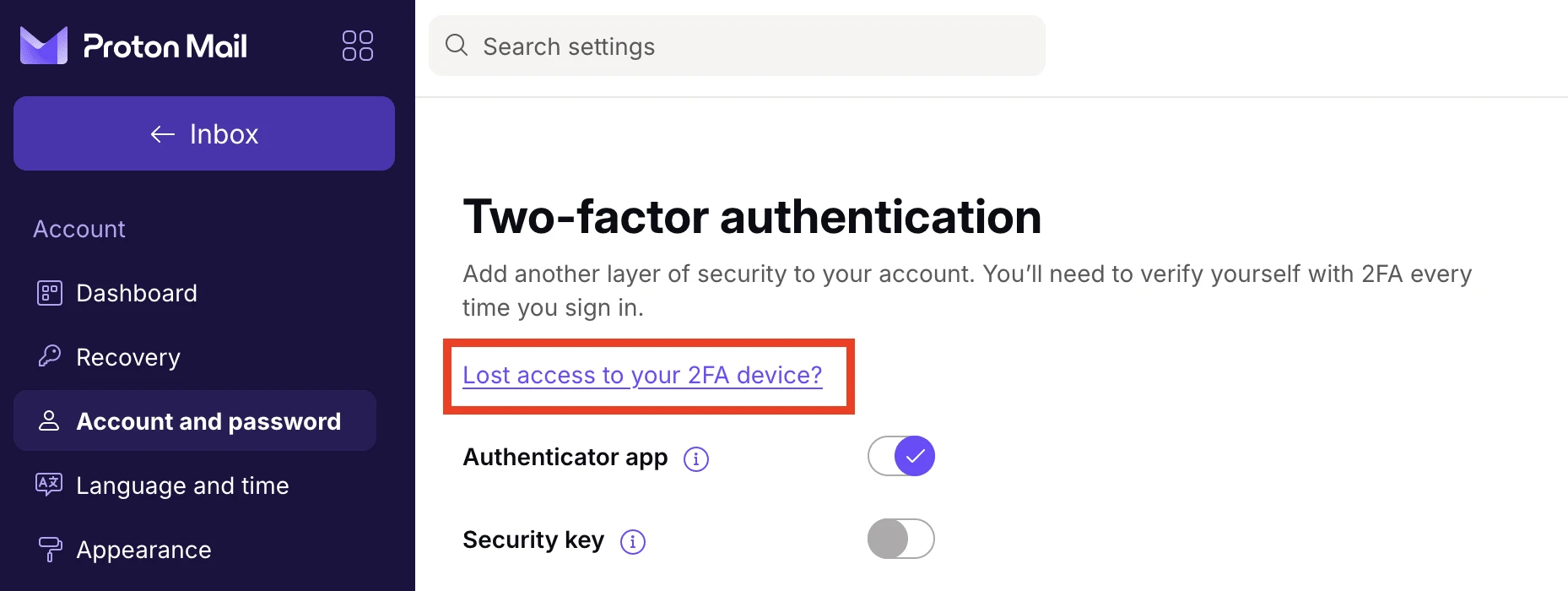
Lost your 2FA device and its recovery codes? A password-reset method or the recovery phrase can switch 2FA off: while signed in, click Lost access to your 2FA device? in the 2FA section; signed out, Proton can send a 2FA recovery code to your recovery method at sign-in. That makes a recovery address a way in, so protect it as well as the account itself.
Print the recovery phrase or write it down, and store it where you keep important documents. If you store it digitally, use an encrypted password manager, but not Proton Pass or Proton Drive: if you are locked out of Proton, you can’t reach those either (Proton’s own advice). Proton recommends at least the recovery phrase plus one extra password-reset method (such as a recovery email) and one extra data-recovery method (such as a Recovery file), so you are not dependent on a single document. The account safety review at the top of the Recovery page shows whether you have enough.
If you ever have to reset. Still signed in on a device? Use Signed-in reset from the account settings first: your data stays unlocked, and without another reset method it takes 72 hours. The recovery phrase works once: after you use it, the Recovery page marks it outdated and it can’t recover newer data. Click Generate new recovery phrase and replace your stored copy.
External images: why you usually don’t need to touch this
Common advice for ordinary email providers is to turn off automatic image loading, since images can contain tracking pixels that tell the sender when you opened a message.
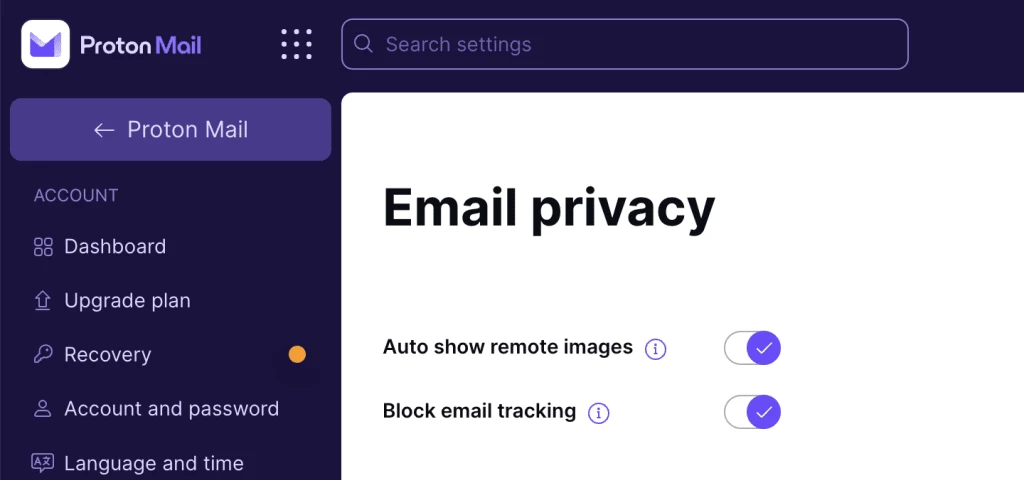
In Proton Mail, that is not a reason to turn the setting off yourself. “Auto show remote images” (Settings → All settings → Email privacy, under Proton Mail in the sidebar) is on by default, deliberately: Proton loads images as the message arrives, through its own proxy server, rather than when you actually open it — so your IP address and device information never reach the original sender or tracker. The “Block email tracking” toggle next to it handles this and is on by default for the same reason. This applies to ordinary, non-end-to-end-encrypted email — newsletters and regular incoming mail; Proton-to-Proton messages are already end-to-end encrypted regardless.
If you would still rather load images manually, you can do that from the same setting. Proton’s servers still fetch the images in the background unless you also turn off Block email tracking, which removes the protection above. These settings don’t sync between Proton’s apps, so you set them per app (web, Android, iOS). For most readers, though, this is not a setting that needs action.
Stopping point
For most readers, this is enough. An account with 2FA enabled and a safely stored recovery phrase is a solid baseline, whether you are starting from scratch or have used Proton Mail for a while without ever visiting these settings.
You do not need to read the rest of this guide if your situation does not call for it.
Step 3: Migrating from Gmail — if you are switching
Proton’s built-in tool for this is Easy Switch. For a personal Gmail account it does two things at once: it imports your existing mail and connects your Gmail address, so new Gmail mail arrives in Proton Mail and you can send from your Gmail address there. You no longer need to set up a forward in Gmail yourself.
- Go to Settings → All settings → Import via Easy Switch and select Google
- Click Connect to Gmail and sign in with Google. Grant all requested access (Select all, then Continue): Proton says missing permissions cause an error later
- Easy Switch starts importing your most recent messages, up to 80% of your Proton storage. The free plan has 500 MB of mail storage (up to 1 GB after Proton’s get-started actions), so that is a small part of a large Gmail mailbox; after the first import you can import more via More import options if you have the space
- Update your address gradually with the services you use regularly, starting with the most important: banking, government login, and cloud storage
Free accounts can connect one Gmail address, paid plans up to three. If you joined Proton through Proton VPN or Proton Pass with that Gmail address, the connection doesn’t work yet (Proton says it’s working on it). One thing to know: mail you send from your connected Gmail address to people who don’t use Proton still goes through Gmail’s servers, so Google can read it.
When you are done, export a copy with Google Takeout, remove the connection under Import via Easy Switch and delete the Gmail account. If that Gmail address is your Proton recovery email, set a different one first, or your email reset stops working.
You do not need to move everything in one evening. A gradual switch with the Gmail connection active is more reliable than a big-bang migration where you miss messages.
Step 4: Proton Bridge — if you want to use Thunderbird or another desktop client
Proton Mail works through the web interface, mobile apps and Proton’s own desktop app (a free trial on the free plan). If you want to use a desktop email client like Thunderbird, Apple Mail, or Outlook, you need Proton Bridge.
Bridge is not free. Proton offers it only with a paid plan that includes Proton Mail (such as Mail Plus at $4.99 / €4.99 a month or Proton Unlimited at $12.99 / €12.99 a month), not on the free tier. Proton’s only Mail Plus trial is two weeks and only through a referral link, and its trial page doesn’t list Bridge, so don’t count on testing it for free. Worth knowing before you build your whole workflow around a desktop client.
Bridge runs locally on your computer and translates the Proton API into standard IMAP/SMTP, so an ordinary email client can talk to your Proton account. In practice that means:
- Bridge must be actively running whenever you want to send or receive mail through your desktop client — close Bridge, and your client stops syncing
- Bridge works on Windows, macOS, and Linux (download), but check the current system requirements there before setting it up on an older machine or a less common Linux distribution
- setup: install Bridge, sign in with your Proton account, then pick your email client and follow Bridge’s setup wizard
- your email client uses a separate Bridge password (not your regular Proton password), shown in Bridge’s mailbox details; it never leaves your computer
For most readers who are happy with the web interface or mobile app, this is a deliberate, paid step — not something to expect automatically with a free account.
See the Thunderbird review for the client side of this setup, and the PGP practical guide if you also want to send encrypted mail to non-Proton recipients.
What these settings do not solve
- Subject lines are not end-to-end encrypted, even in Proton Mail. Never treat an email’s subject line as confidential.
- Metadata stays visible to Proton. Its Mail policy lists sender and recipient addresses, the IP address incoming mail came from, attachment names, the subject, and sent and received times. Proton says it hands over what it holds only on a binding request from Swiss authorities and can’t decrypt end-to-end encrypted content; its transparency report counts 9,301 legal orders for Proton Mail in 2025, 8,313 of them complied with.
- Email to or from non-Proton addresses is not end-to-end encrypted unless you use PGP or Proton’s password-protected messages. The other side’s provider may be able to read it, and Proton scans it for spam and viruses before storing it encrypted.
- Phishing remains a behaviour problem. 2FA protects your account, not against entering your password on a fake site yourself.
For communication that genuinely needs to stay confidential, Signal is structurally stronger than email — including Proton Mail.
Next step
Go further
- PGP practical guide — encrypted mail with non-Proton recipients
- Secure email without overkill — when Proton is enough and when you need more
- Setting up Signal — for communication email structurally cannot protect
Reviews
- Proton Mail review — background, caveats, and comparison with alternatives
- Thunderbird review — desktop client with PGP support