Syncthing review — file sync without a cloud
Syncthing keeps folders identical across your own computers and phones, directly between the devices, encrypted, with no cloud account and no company holding a copy.
Syncthing review
Syncthing keeps folders identical across your own computers and phones, directly between the devices, encrypted, with no cloud account and no company holding a copy.
Who is this for? Anyone with two or more devices who wants the same files on each without handing them to Dropbox, Google Drive or iCloud: documents between a desktop and laptop, phone photos to a computer, a KeePassXC database on every device. It fits best if one of your devices is on most of the time. Less suitable if you mainly want to share files with other people via a link, or if you’re looking for a backup: Syncthing copies deletions too.
Syncthing is free, open-source software (MPL 2.0), developed in the open on GitHub. The Syncthing Foundation, a registered Swedish non-profit, pays for the project’s infrastructure (website, discovery and build servers; its latest published annual report covers 2024), and Kastelo, a company that sells commercial support for Syncthing, sponsors development resources, according to syncthing.net. There is no account, no subscription and no storage limit other than your own disks.
What Syncthing protects
- Your files never sit on someone else’s server. Data only exists on devices you added yourself. There is no central storage that can be breached, subpoenaed or scanned.
- Encrypted in transit. Every connection between your devices uses TLS with forward secrecy, including when traffic has to pass through a public relay; the relay can’t read it.
- Only devices you approve can connect. Each device has a cryptographic Device ID (a hash of its certificate). A device you haven’t explicitly added can’t join, even if it knows your ID.
- No usage data by default. Anonymous usage reporting is off unless you say yes when Syncthing asks after installation.
What Syncthing does NOT protect
- Your files on the device itself. Syncthing doesn’t encrypt what’s stored on disk. That’s the job of full-disk encryption on each device (see the secure laptop guide).
- Against mistakes and ransomware. Delete or corrupt a file on one device and Syncthing faithfully copies that to the others. Versioning (below) softens this; a real backup is still separate.
- The fact that you use Syncthing. By default, Syncthing announces your Device ID and IP address to public discovery servers so your devices can find each other, and someone watching your network can tell a Syncthing connection apart. The file contents stay private.
Specifications
| Property | Value |
|---|---|
| Maker | Syncthing open-source project; infrastructure paid by the Syncthing Foundation (Swedish non-profit), development sponsored by Kastelo |
| Current version | 2.1.7 (21 October 2026) |
| Price | Free, open source (MPL 2.0) |
| Platforms | Windows, macOS, Linux, FreeBSD, OpenBSD, NetBSD, illumos; Android via the community app Syncthing-Fork; iPhone and iPad via the third-party app Synctrain |
| How it syncs | Directly between devices (peer-to-peer); via a public relay if a direct connection isn’t possible |
| Encryption | TLS 1.2/1.3 between devices; no encryption at rest (use disk encryption) |
| Cloud storage | None |
| Account | None; devices are identified by a Device ID |
| File versioning | Optional per folder (trash can, simple, staggered or external); off by default |
| Security audit | No published independent audit found |
How it works, in one minute
You install Syncthing on each device and pair devices by exchanging Device IDs (a long code, or a QR code on your phone). Then you share a folder from one device and accept it on the other. From then on, every change in that folder is copied to the other devices as soon as they can reach each other.
Two services help your devices find each other:
- Discovery servers keep track of which IP address belongs to which Device ID, so your laptop can find your desktop when it’s on another network. They’re run by the Syncthing project and never see your files.
- Relays carry encrypted traffic when two devices can’t connect directly (for example, both behind strict routers). Anyone can run a relay; a relay learns the Device IDs involved but can’t read the data.
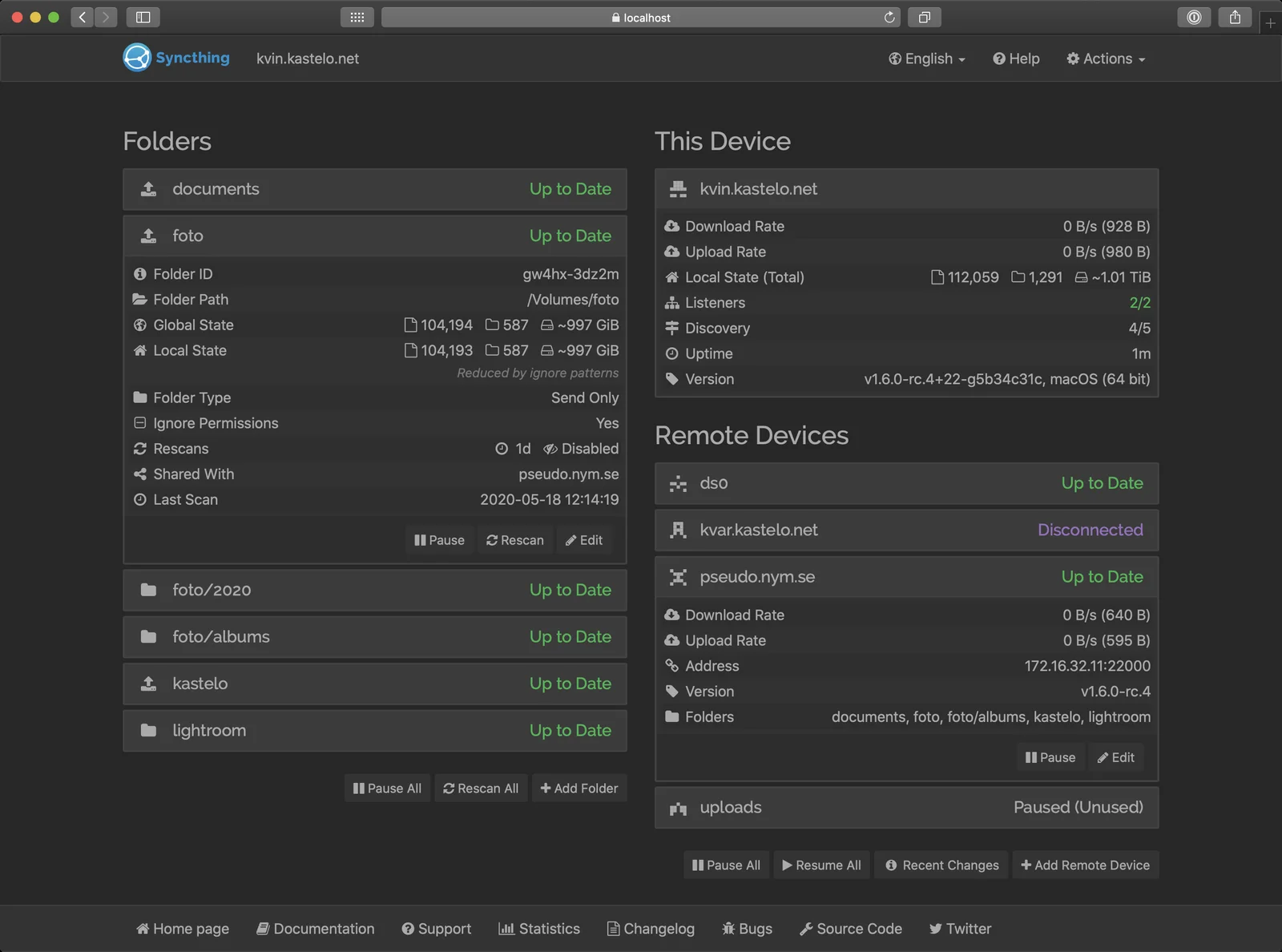
Syncthing’s web interface: folders on the left, this device and remote devices on the right. Screenshot: Syncthing 1.6, May 2020. Image: Jakob Borg (Kastelo), Wikimedia Commons, MPL 2.0.
On a computer you manage everything in this web interface, which runs locally in your browser. It’s functional rather than pretty, and it’s where most first-time confusion comes from.
Sync is not backup: turn on versioning
This is the most important thing to understand about Syncthing. It keeps folders identical, so a deletion, an accidental overwrite or a ransomware-encrypted file spreads to every device.
File versioning is the safety net, but it’s off by default and works in a specific way: it keeps the old copy of a file on a device when a change arrives from another device. So if you delete a file on your laptop, the desktop with versioning on keeps the old copy in a hidden .stversions folder.
→ Turn on versioning on at least one device, ideally the one that’s always on. “Staggered” versioning keeps more old copies for recent changes and fewer for older ones; “trash can” is the simplest.
Even with versioning, keep a separate backup: an offline drive or an encrypted backup service. See the backup implementation guide.
On your phone
Android: the official Syncthing app was discontinued and its repository archived in December 2024. The community continuation is Syncthing-Fork, now maintained by researchxxl on GitHub and listed by the Syncthing project itself. It’s on F-Droid (version 2.1.7.0, matching the current Syncthing release), GitHub releases (or via Obtainium) and Google Play, where updates arrive later: the Play listing was last updated on 14 August 2026. Switching from the old official app? Syncthing-Fork’s README links a migration guide. It runs in the background, and its Run Conditions (side menu → Settings) let you limit syncing, for example to Wi-Fi only, to save battery and mobile data.
iPhone and iPad: there’s no official app. Synctrain is a free, open-source app (MPL 2.0) built on Syncthing by Tommy van der Vorst, published in the App Store by T-Shaped innovatie BV, and listed by the Syncthing project. It can sync whole folders or selected files on demand. iOS limits how much apps can do in the background, so expect syncing to happen mainly when the app is open rather than continuously. Möbius Sync is an older option (free, with a paid Pro version at $4.99 / €5.99); it is not listed by the Syncthing project, and its October 2026 update moved it to Syncthing 2.1.6.
Settings worth knowing
Syncthing’s defaults are sensible. These are the ones to look at, not a checklist to switch off:
- Global discovery and relays (on by default). They’re what make syncing work away from home. If your devices only sync on your home network, or you connect them over a VPN like Tailscale, you can turn both off (Actions → Settings → Connections: Global Discovery, Enable Relaying) and, where local discovery can’t find a device, add its address by hand (the device’s Edit → Advanced → Addresses). The trade-off: devices on changing networks may no longer find each other.
- Usage reporting (off unless you agree). Syncthing asks once after installation. Saying no is fine; you can change it later under Actions → Settings → General → Anonymous Usage Reporting.
- Automatic upgrades. On by default when you use the official downloads, so Syncthing keeps itself current (Actions → Settings → General → Automatic upgrades). Linux distribution packages usually update through your package manager instead, and are sometimes a version or two behind.
- The web interface. It’s only reachable from the device itself by default. If you ever open it up to your network (for example, on a home server), set a username and password first (Actions → Settings → GUI → GUI Authentication User and GUI Authentication Password).
- Untrusted devices (beta). You can share a folder with a password, so a device you don’t fully trust, such as a rented server, stores only encrypted data: on the folder’s Sharing tab, type a password in the field next to that device (If untrusted, enter encryption password); the untrusted device adds the folder as Receive Encrypted. The project itself still calls this beta; don’t rely on it as your only copy.
Syncthing vs cloud storage
| Syncthing | Nextcloud (self-hosted) | Proton Drive / Tresorit | |
|---|---|---|---|
| Where your files live | Only on your own devices | On your own server | On the provider’s servers, end-to-end encrypted |
| Server or account needed | No | Yes, your own server | Yes, an account |
| Works when your other devices are off | No, unless one device is always on | Yes | Yes |
| Share with others via a link | No | Yes | Yes |
| Maintenance | Low once set up | High (you run a server) | None |
| Cost | Free | Free software, plus your hardware | Free tier, then subscription |
| Best for | Keeping your own devices in sync | Families or teams who want their own cloud | Easy, private cloud storage and sharing |
See the Nextcloud, Proton Drive and Tresorit reviews.
Caveats
Devices need to be online at the same time. There’s no cloud copy to fill the gap, so a phone and a laptop that are never on together won’t sync. The usual fix is one always-on device: a desktop, a NAS or a small home server.
Conflicts become extra files. If the same file is changed on two devices before they sync, Syncthing keeps both, renaming one to …sync-conflict-…. Nothing is lost, but you have to sort it out by hand. Avoid editing the same file on two devices at once.
A long-offline device can bring deleted files back. Since Syncthing 2.0, records of deleted files are forgotten after a set time: by default about 15 months (10,920 hours, since 2.0.1; 2.0.0 used six months). A device that has been off for longer than that may re-share files you deleted in the meantime. Check an old device’s folders after reconnecting it.
No independent security audit. The design is documented and the code is open, but we found no published independent security audit. That’s a real gap for a tool that moves your files, even if the long, public track record counts for something.
A learning curve. Device IDs, folder IDs and the web interface take some getting used to. Once set up, it mostly runs by itself.
Pros and cons
Pros
- No cloud, no account, no storage limit
- Encrypted connections; only devices you approve can join
- Free, open source, non-profit backed
- Runs on almost every desktop system, Android and iOS
- Reliable once set up; mostly invisible day to day
Cons
- Not a backup: deletions sync too, versioning is off by default
- Needs one device online to keep things in sync
- No sharing links for other people
- Mobile apps are third-party (Syncthing-Fork, Synctrain)
- No published independent security audit
- Web interface takes some learning
Getting started
- Install it on your always-on device first. On Windows use Syncthing Windows Setup, on macOS syncthing-macos, on Linux your distribution’s package or Syncthing’s own repository. All are linked from syncthing.net/downloads. On Android, install Syncthing-Fork from F-Droid; on iPhone, Synctrain from the App Store.
- Pair two devices. On the first device, open Actions → Show ID: it shows the Device ID and a QR code. On the second, click Add Remote Device, paste the ID under Device ID and click Save. On a phone with Syncthing-Fork: Devices tab → Add Device, scan the code with the QR button next to Device ID, then tap Create. The first device then shows “New Device … wants to connect”: click Add Device, then Save (on a phone it’s a notification: Accept, then Create). Pairing only works once both sides have added each other.
- Share one folder. On one device click Add Folder, fill in Folder Label and Folder Path on the General tab, tick the other device under Unshared Devices on the Sharing tab, and click Save. The other device shows “New Folder … wants to share folder”: click Add, set the Folder Path where it should go, and Save. On a phone, Syncthing-Fork shows a notification instead: tap Accept, tap Directory to pick the location, then Create.
- Turn on versioning on the always-on device: click the folder to open it → Edit → File Versioning tab → Staggered File Versioning or Trash Can File Versioning → Save. Versioning is set per device, so do this on every device that should keep old copies. (Folders created in Syncthing-Fork start with Trash Can versioning, 14 days.)
- Keep your backup. Syncthing moves your files around; a backup keeps an older copy safe.
Already have a setup? Skip steps 2 and 3 for devices and folders that already sync. Check step 4 instead: open each folder’s Edit → File Versioning on your always-on device; if it says No File Versioning, nothing keeps old copies there yet.
Conclusion
Syncthing is the strongest option for keeping your own devices in sync without a cloud provider: no account, no storage limits, encrypted connections and nobody else holding a copy. For documents, photos from your phone or a password database, it is an easy recommendation.
The trade-offs are practical rather than about privacy: you need one device that’s usually on, the web interface takes some learning, and the phone apps come from the community rather than the project itself. Most important: treat it as sync, not backup. Turn on versioning, and keep a separate backup next to it.
Next step
Chosen Syncthing?
- Backup implementation guide — the backup that belongs next to it
- KeePassXC review — a password manager that works well with Syncthing
Similar options
- Nextcloud review — your own cloud, including sharing and calendars
- Proton Drive review — end-to-end encrypted cloud storage with no server to run
- Cryptomator review — encrypt files before they go into any cloud
Want to go further?
- Tailscale review — connect your devices privately, with or without Syncthing’s discovery