Android work profile: separating work and personal without a custom ROM
Android has a built-in system to fully isolate work apps from your personal apps. It’s called a work profile — and you don’t need a custom ROM, root access, or an IT department to use it.
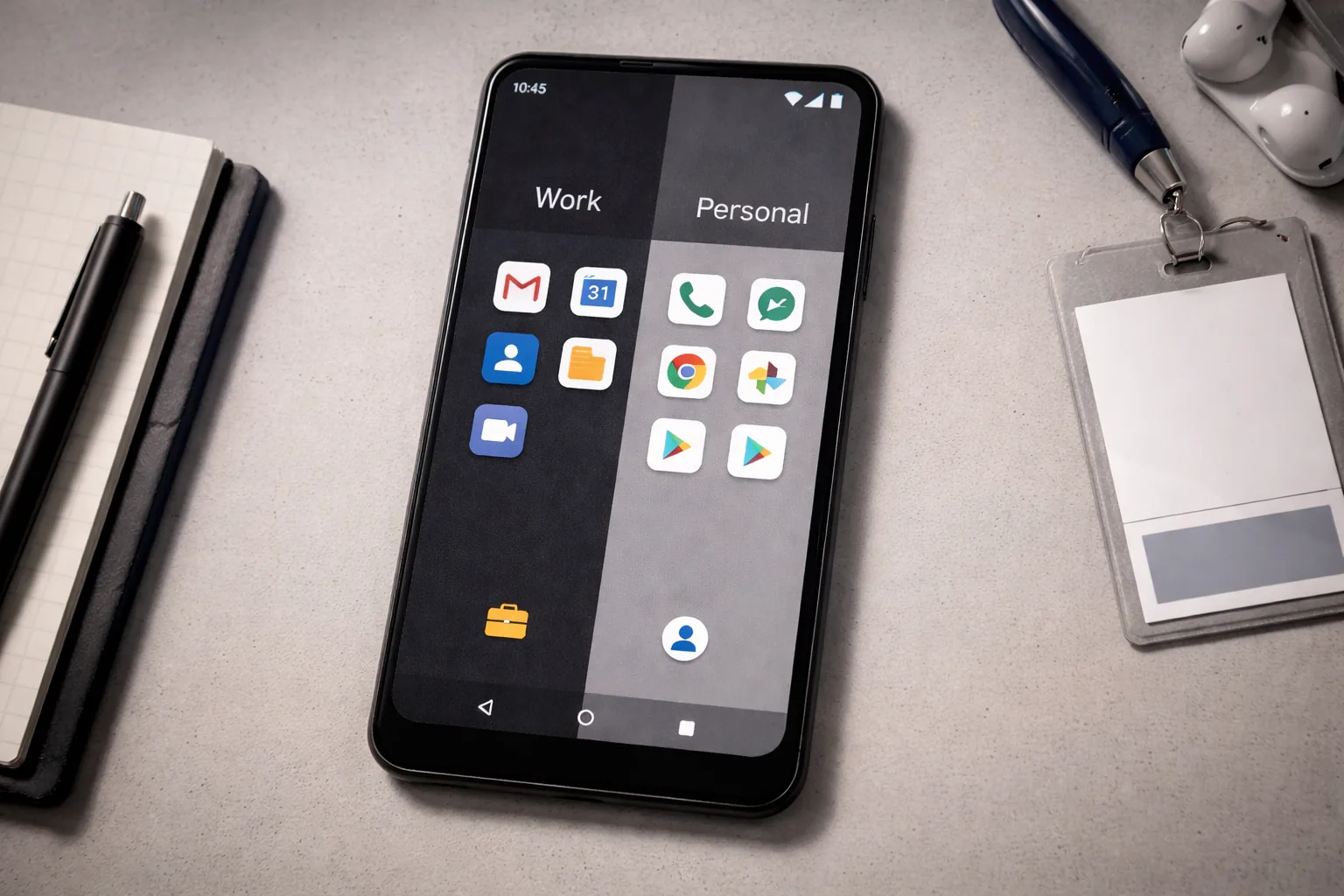
Android work profile: separating work and personal
Android has a built-in system to fully isolate work apps from your personal apps. It’s called a work profile — and you don’t need a custom ROM, root access, or an IT department to use it.
Work profiles have existed on Android since Android 5.0. The recommended app below, Shelter, currently requires Android 7.0 or later.
Who this guide is for
This guide is mainly for:
- people using one Android phone for both work and personal life
- BYOD users who want a cleaner boundary without buying a second device
- readers in the student/employee profile who need practical separation, not maximum isolation
For most readers, this is a middle step between “everything mixed together” and “buy a separate privacy phone.” If you need stronger isolation for high-risk identities or threat-specific compartmentation, this is not the final answer.
What you gain, and what it costs
If you use a work profile properly, you usually gain:
- clearer separation between work apps and personal apps
- less chance that work data spills into personal cloud, browser, or messaging use
- a more defensible boundary on a personal device under BYOD conditions
But it costs something:
- duplicate apps or duplicate logins
- a little setup and maintenance
- some app compatibility issues in the work profile
For work/personal separation this is usually a good trade. It becomes overkill if you mainly need better work habits and browser/account separation, not a second container on your phone.
What does a work profile do?
A work profile is a separate, isolated container on your phone. Apps inside the work profile:
- Cannot read data from apps outside the work profile
- Appear separately in your app drawer (marked with a briefcase icon)
- Have their own contacts, calendar, and notifications
- Can be locked or paused independently
In practice: your work email app cannot see your personal WhatsApp messages. Your personal browser has no access to work documents. If you hand in your phone for repair or lose it, you can remotely wipe the work profile without touching your personal data.
When should you use a work profile?
Good for:
- Keeping work email and apps on your personal phone, separate from personal use
- Privacy from your employer: work profile data is manageable by IT, personal profile is not
- Preventing work apps from reading your personal calendar, photos, or contacts
- BYOD situations (Bring Your Own Device)
Less suitable for:
- Situations where you need to isolate high-risk activities — use GrapheneOS profiles instead
- If your employer requires full MDM management — IT will set that up themselves via a management app
Method 1: Shelter (recommended, no employer needed, Android 7+)
Shelter is an open-source app that lets you create and manage a work profile yourself. You don’t need an employer, IT department, or business account.
Download: via F-Droid (search for “Shelter”). Google removed Shelter (and the similar Island) from the Play Store in January 2025 over a policy change around use of the REQUEST_INSTALL_PACKAGES permission — F-Droid is now the only official route.
Setup:
- Open Shelter
- Tap Initialize work profile — Android asks for confirmation
- The work profile is created — takes 30–60 seconds
- Shelter now shows two tabs: Main profile and Work profile
Moving apps into the work profile:
In Shelter → Main profile tab → tap an app → Clone to work profile. The app is installed separately in the work container. You’ll see two versions in your app drawer — the work version has an orange briefcase icon.
Pausing the work profile:
Shelter has a shortcut to pause the entire work profile. All work apps become unreachable and stop sending notifications. Useful in the evening or on weekends.
Method 2: Via your employer (MDM)
If your employer uses Mobile Device Management (MDM), they’ll send an invitation to set up a work profile. This happens through a management app (Microsoft Intune, VMware Workspace ONE, Jamf, etc.).
The employer-managed work profile works the same way — but the IT department can:
- Install and remove apps in the work profile
- Remotely wipe the work profile
- Enforce a PIN on the work profile
What your employer cannot do via the work profile:
- See or manage your personal apps, messages, photos, or contacts
- Wipe your personal profile if only the work profile is managed
What your employer can usually see or manage:
- Basic device details such as model, device ID, and Android version
- Work apps and data inside the work profile
- Network activity and location information from apps inside the work profile
Watch the BYOD policy: If your employer asks to manage your entire phone instead of only a work profile, read the BYOD policy and privacy statement first or ask for a separate work phone. A work profile is usually the more privacy-friendly option on a personal device.
What goes in the work profile, what doesn’t?
Put in the work profile:
- Work email app (Outlook, Gmail for work)
- Teams, Slack, or other work communication
- Work VPN app
- Business document apps (OneDrive, SharePoint)
Keep in the personal profile:
- WhatsApp, Signal, personal email
- Photos, music, banking
- Anything you don’t want an employer to see or wipe
Pausing the work profile outside working hours
A work profile that’s always active keeps sending notifications and draining battery. Pause it after work:
Via Shelter: Add the Shelter widget to your home screen → tap Pause work. All work apps are immediately unavailable.
Via Android itself: Open the app drawer → Work tab → switch Work apps off at the bottom. On many phones this is also available via the briefcase quick-settings tile.
Automatic schedule: On supported devices: Settings → Digital Wellbeing & parental controls → Work profile → set working hours.
Issues and limitations
Apps don’t work in the work profile: Some apps refuse to run in a work profile (banking apps, some government apps). This is a deliberate restriction by the app, not Android. Solution: use those apps only in your personal profile.
Contacts are usually separate: By default, work and personal contacts are separated. On some phones or through management policy, work contacts can still appear in your personal contacts or phone app.
Two versions of the same app: If you want both a work and personal WhatsApp, the work profile acts as a perfect container for the second instance.
Difference from GrapheneOS profiles
GrapheneOS profiles work the same way but offer more:
- Better isolation — no shared hardware fingerprint
- Multiple profiles simultaneously (GrapheneOS supports up to 32 profiles)
- Profile-specific network settings (VPN only for work profile)
- Higher threat model
For everyday work/life separation on a regular Android phone, a work profile via Shelter is sufficient. See GrapheneOS profiles for the more advanced approach.
Next step
Go further
- Android privacy without a custom ROM — the broader baseline settings once the work profile is in place
- GrapheneOS profiles — more isolation for higher threat levels
- F-Droid guide — how to install Shelter via F-Droid
Profiles
- Profile: student or employee — separating work and personal on your phone