GrapheneOS profiles: work, personal, and isolated temporary use
This guide is specific to GrapheneOS. If you have a regular Android phone, see Android privacy without a custom ROM for work-profile instructions on standard Android.
GrapheneOS profiles: work, personal, and isolated temporary use
This guide is specific to GrapheneOS. If you have a regular Android phone, see Android privacy without a custom ROM for work-profile instructions on standard Android.
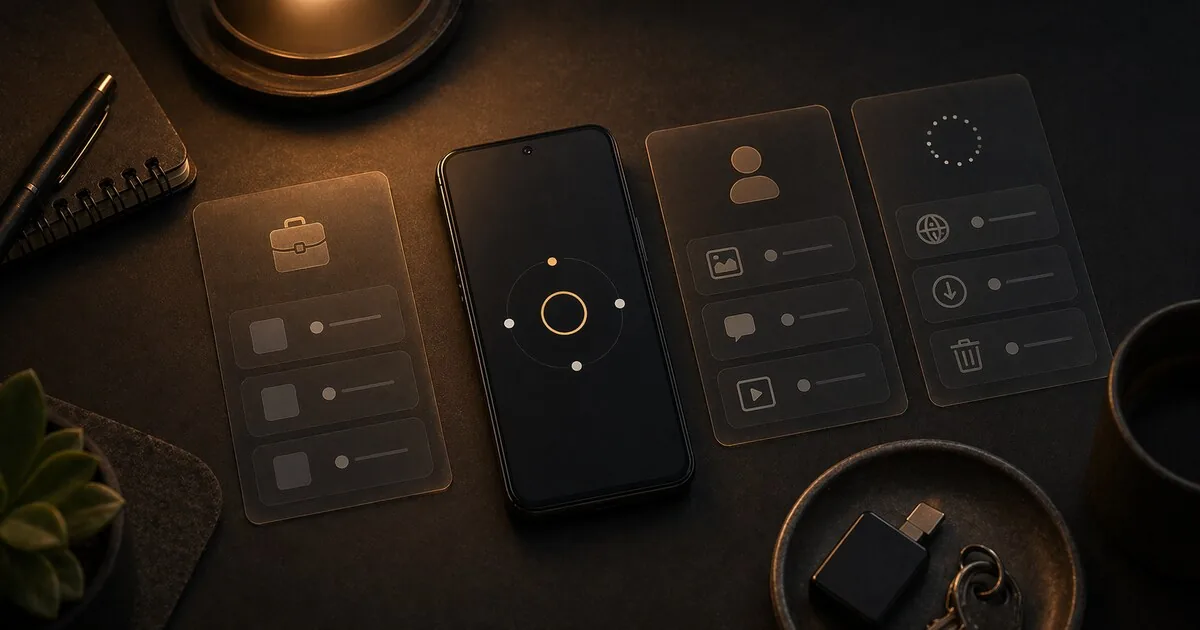
GrapheneOS supports multiple user profiles. Each profile is a fully separate Android environment: its own apps, its own files, its own settings. They cannot see each other.
This is one of the most powerful features of GrapheneOS. But it is important to understand it correctly: profiles give compartmentalisation on one device, not magical anonymity.
Who this is useful for
This feature fits primarily:
- balanced privacy-aware users who want to separate work, social media, or Google-dependent apps from their main use
- professional handling sensitive data users who need work apps on the same device but not in their primary environment
- higher-risk users who want to add extra compartmentalisation to an already well-considered setup
For most readers, one extra profile is already enough. More profiles give more separation, but also more friction and more room for mistakes.
What you gain, and what it costs
If you use GrapheneOS profiles properly, you usually gain:
- stronger compartmentalisation between daily apps, work apps, and less-trusted apps
- better control over which accounts and notifications live together
- a practical way to keep higher-friction tools downstream from your main daily environment
But it costs something:
- more switching and more chances to make a mistake between profiles
- more battery and memory use when multiple profiles stay active
- a false sense of anonymity if you forget that one device still creates device-level and behavioural links
For many privacy-aware or professional users, that is a good trade. It becomes overkill when you keep adding profiles without a clear separation goal, or when you use profiles to solve problems that basic permissions and app choices would already solve.
How do profiles work?
Think of it like separate user accounts on a computer. Profile 1 cannot access the files of Profile 2. Apps in Profile 1 cannot read data from apps in Profile 2.
The primary profile (profile 0) is your main profile. Additional profiles are created via Settings → System → Multiple users.
Switching is done via the user icon in quick settings or via the power menu. On the lock screen, the End session button appears when you are active in a secondary profile. That action fully puts the profile to rest, including removing its encryption keys from memory. More on how GrapheneOS implements profiles: grapheneos.org.
What profiles do and do not do
What you gain:
- logical separation of apps and data
- keeping work apps or less trusted apps out of your main profile
- better control over notifications and background activity per profile
What it costs:
- more switching between environments
- more battery and memory use if multiple profiles stay active
- more risk of opening or installing something in the wrong profile
What profiles do not fix:
- they do not make one device automatically anonymous
- they do not remove network traces if you use the same device, the same Wi-Fi, or the same accounts
- they do not replace a separate device if your risk genuinely requires strict separation
Three practical profiles
Primary profile — daily use
Your main profile for communication, navigation, photos and everyday apps. No sandboxed Google Play unless genuinely needed. Signal, Vanadium, Bitwarden, F-Droid apps.
Work profile — apps you do not fully trust
Apps you need but do not fully trust: your employer’s app, Teams or Slack (which collect corporate data), or apps you are required to use.
In the work profile you can install sandboxed Google Play without it affecting your primary profile. Data stays isolated.
Practical tip: Turn off the work profile completely in the evenings and on weekends. Use End session for that, visible on the lock screen or via the power menu. This wipes the profile’s encryption keys from memory and fully puts the profile to rest. No notifications, no background activity.
Isolated temporary profile — for sensitive or standalone tasks
Use this for tasks you want to keep separate from your daily profile: an account you do not want mixed with your main use, a temporary app, or research where you do not want to be logged into your regular accounts at the same time.
Important: do not call this an anonymous profile. On the same device, device-level, network-level, and behavioural connections still exist.
For genuinely higher stakes:
- use Tor Browser if anonymity while browsing matters
- use a separate device if identities must be strictly separated
- treat this profile as extra compartmentalisation, not complete separation
In practice, name this profile something concrete like temp, research, or standalone rather than anonymous.
Which apps go in which profile?
| App | Profile |
|---|---|
| Signal, WhatsApp | Primary |
| Banking apps | Primary or work (depending on your situation) |
| Employer app, Teams, Slack | Work |
| Google Maps (if you use it) | Work or isolated temporary |
| Tor Browser | Isolated temporary |
| Social media | Work (isolated from personal data) |
The cost: battery and memory
Each active profile consumes RAM and battery. On most Pixel devices, two active profiles are manageable. Three or more you will notice in daily use.
Solution: turn off profiles you are not actively using via Settings → System → Multiple users → [profile] → Turn off. Turned-off profiles consume no resources.
Profiles vs. isolating apps
Profiles are not the only way to isolate apps. GrapheneOS also lets you restrict network access, storage access and other permissions per app within the primary profile.
For most users, one extra work profile is sufficient. Profiles are the heavy artillery — use them where it makes sense.
Private Space is a variation on this principle: a separate profile nested inside your main profile, introduced in Android 15 and still fully supported on GrapheneOS’s current Android 17 base (GrapheneOS shipped its Android 17 stable release in June 2026). GrapheneOS recommends Private Space as an alternative to manually creating a work profile. You can lock it with a single tap without fully switching profiles. Useful when you mainly want an isolated workspace.
When does this become overkill?
For most readers it becomes overkill when you:
- try to keep three or more profiles active at once without a clear reason
- try to solve every minor privacy problem with a new profile
- use profiles while app permissions, passwords, and basic settings are not yet in order
A practical rule of thumb:
- low-friction normal user: start without extra profiles, or at most one profile for work or social media
- balanced privacy-aware: one extra profile is often sensible, two only if the separation genuinely helps
- higher-risk: use profiles as an additional layer, not as a substitute for stronger operational separation
Next step
Go further
- Google Play sandbox on GrapheneOS — decide where Google-dependent apps belong across your profiles
- GrapheneOS first setup — settings before using profiles
- VPN comparison — choosing a VPN provider
- F-Droid: apps without Google — open-source apps without Play