Firefox privacy settings: the right browser hardening without overkill
If you only want to configure one browser properly, Firefox is the most sensible place for many readers to start. Not because you should tweak it endlessly, but because a few good settings already make a real difference.
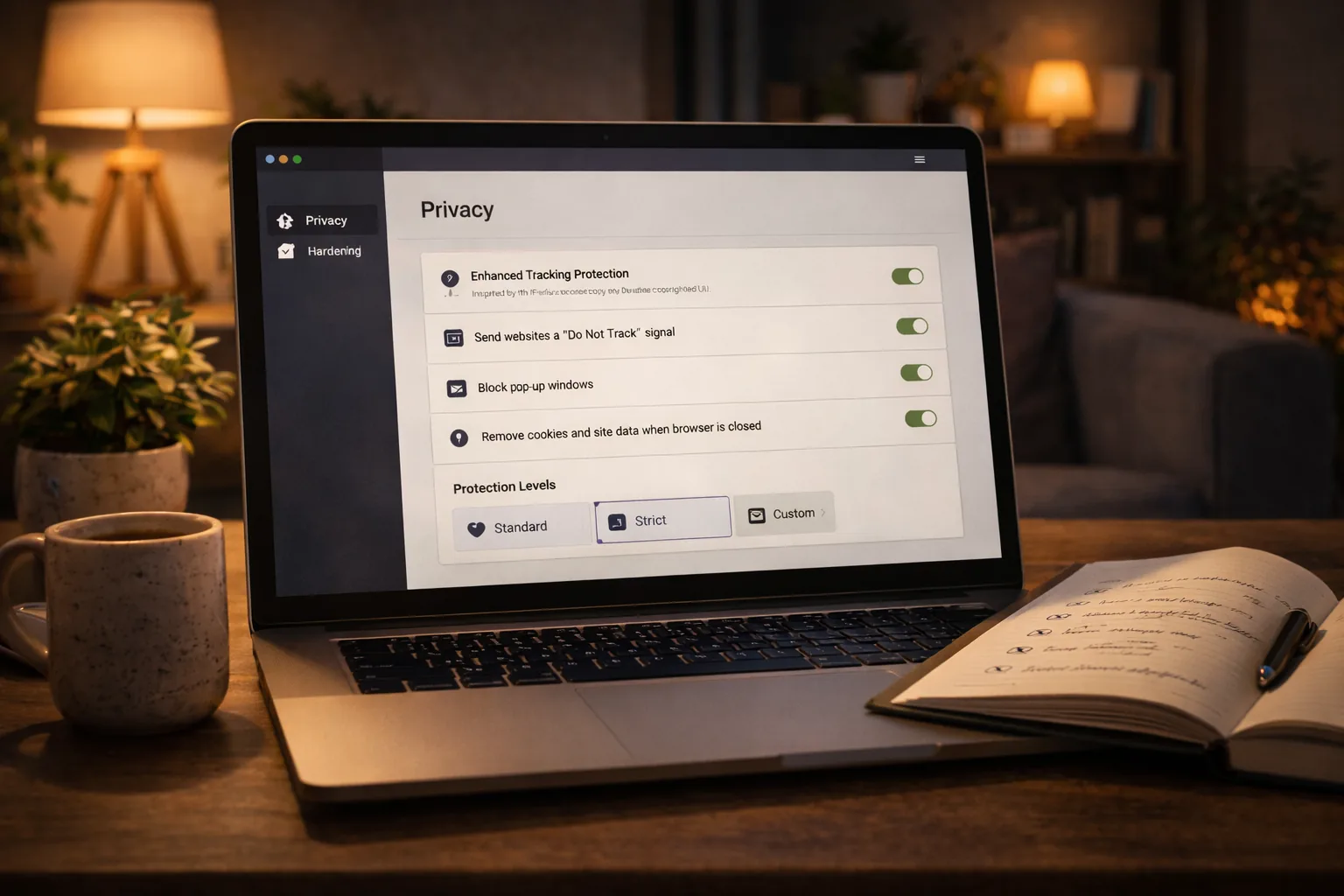
Firefox privacy settings: the right browser hardening without overkill
If you only want to configure one browser properly, Firefox is the most sensible place for many readers to start. Not because you should tweak it endlessly, but because a few good settings already make a real difference.
That makes this a real task guide:
- set the basics properly
- stop there if that is enough
- only add extra hardening if you have a clear reason
Who this is for
This guide fits readers who deliberately use Firefox and want to configure it properly without disappearing into tweak overkill.
Best fit:
- balanced privacy-aware readers who want more than “just install a different browser”
- readers who use Firefox on desktop or Android and want one clear path
- readers who want to know which extra steps still make sense once the basics are right
For low-friction normal users, step 1 is usually enough. That is not half-finished. It is the right stopping point.
What you gain, and what it costs
What you usually gain:
- less telemetry going back to Mozilla
- stronger default protection against tracking
- less unnecessary data leakage through the browser
What it costs:
- a few minutes of setup
- occasional minor website compatibility issues
- extra maintenance if you keep adding too many tweaks afterwards
The common mistake here is usually not doing too little. It is doing too much at once.
Step 1: set up Firefox properly
Do these steps in this order.
1. Disable telemetry
Go to:
Settings -> Privacy & Security -> Firefox Data Collection and Use
Disable everything there.
Why:
- otherwise you still send usage data back to Mozilla
- for most readers this is a sensible baseline step with little downside
2. Set Enhanced Tracking Protection to Strict
Go to:
Settings -> Privacy & Security -> Enhanced Tracking Protection -> Strict
Why:
- for most readers this is the best balance between more blocking and still remaining usable
What to know:
- some sites may occasionally misbehave
- if a site genuinely breaks, fix that per site instead of lowering everything again immediately
3. Enable HTTPS-Only Mode
Go to:
Settings -> Privacy & Security -> HTTPS-Only Mode -> Enable in all windows
Why:
- this avoids unencrypted HTTP connections where they are not needed
4. Leave Firefox Sync off by default, or use it consciously
Go to:
Settings -> Sync
If you do not actively use Sync: leave it off.
If you do consciously use it for bookmarks, tabs, or history: treat that as a deliberate tradeoff, not as something that should be on by default.
5. Install uBlock Origin
Install:
- uBlock Origin
For many readers, this is the only extension you really need.
Then:
- open the uBlock Origin dashboard
- go to
Filter lists - keep the default lists enabled
- also enable:
EasyListEasyPrivacyuBlock filters - Privacy
Leave advanced mode off unless you know exactly why you want it.
Stop here if this is enough
If you have now done this:
- telemetry off
- tracking protection on Strict
- HTTPS-Only enabled
- uBlock Origin configured properly
then Firefox is good enough for most readers.
You do not have to go further.
This is a real stopping point, not an intermediate step.
Step 2: only continue if you actually want more
Only continue if you:
- deliberately want extra hardening
- accept that some sites or workflows may break
- are willing to test and fix small issues yourself
Step 3: the most useful extra Firefox tweaks
Open:
about:config
Add these settings one by one.
Most sensible extra steps
| Setting | Value | Why |
|---|---|---|
media.peerconnection.enabled | false | prevents WebRTC IP leaks, especially relevant if you use a VPN |
browser.send_pings | false | disables hyperlink-ping tracking — current Firefox versions already default to false here, so this is mostly a verification step rather than a change |
Note: manually setting network.cookie.cookieBehavior is no longer necessary. Firefox has blocked third-party cookies by default since 2022 via Total Cookie Protection (cookieBehavior 5 — every site gets its own isolated cookie jar instead of cookies simply being blocked outright). Setting it back to a lower value yourself is a step backward, not extra hardening.
For many readers, this is the maximum that still stays reasonably low-maintenance.
Heavier extra steps
| Setting | Value | Why |
|---|---|---|
privacy.resistFingerprinting | true | makes fingerprinting harder, but can disrupt sites — Mozilla only recommends this for people who accept the breakage that comes with it |
geo.enabled | false | disables the location API if you do not need it |
Important:
privacy.resistFingerprintingis the heaviest step here- do not enable everything at once
- test after each change whether your daily sites still work
An earlier version of this list also included dom.battery.enabled — that one is now pointless: Firefox has denied websites access to the Battery Status API since version 52 (2016), so this setting no longer protects against anything that isn’t already blocked by default.
Extra extensions: usually fewer than you think
Sometimes reasonable
ClearURLs
Useful if you want to strip tracking parameters from links, but not required.
LocalCDN
Can be useful, but adds compatibility friction. Not a baseline recommendation for most readers.
Usually not needed
Privacy Badger, Disconnect, Ghostery.
For most readers, these mostly duplicate what uBlock Origin already does and add extra complexity.
Using Vanadium instead of Firefox?
Then this guide is not your one-to-one path.
Vanadium on GrapheneOS usually needs much less work:
- review site permissions strictly
- allow location, camera, microphone, and notifications only where genuinely needed
- do not try to turn it into Firefox-with-extensions
Vanadium is good precisely because you usually need to do less.
Next step
Go further
- Setting up Signal — the same approach applied to your messaging app
- Which password manager should you choose? — and the settings worth setting up afterward
- Security without buying anything — impactful changes with no cost
Reviews
- Browser comparison: Firefox, Brave and Tor — choose the right browser for your level