XMPP: getting started with portable encrypted communication
XMPP is not a replacement for Signal or WhatsApp as a daily messaging app. It solves a different problem: communication that works on any device you already own, without a phone number, without an approval flow, and without everything depending on one specific smartphone.
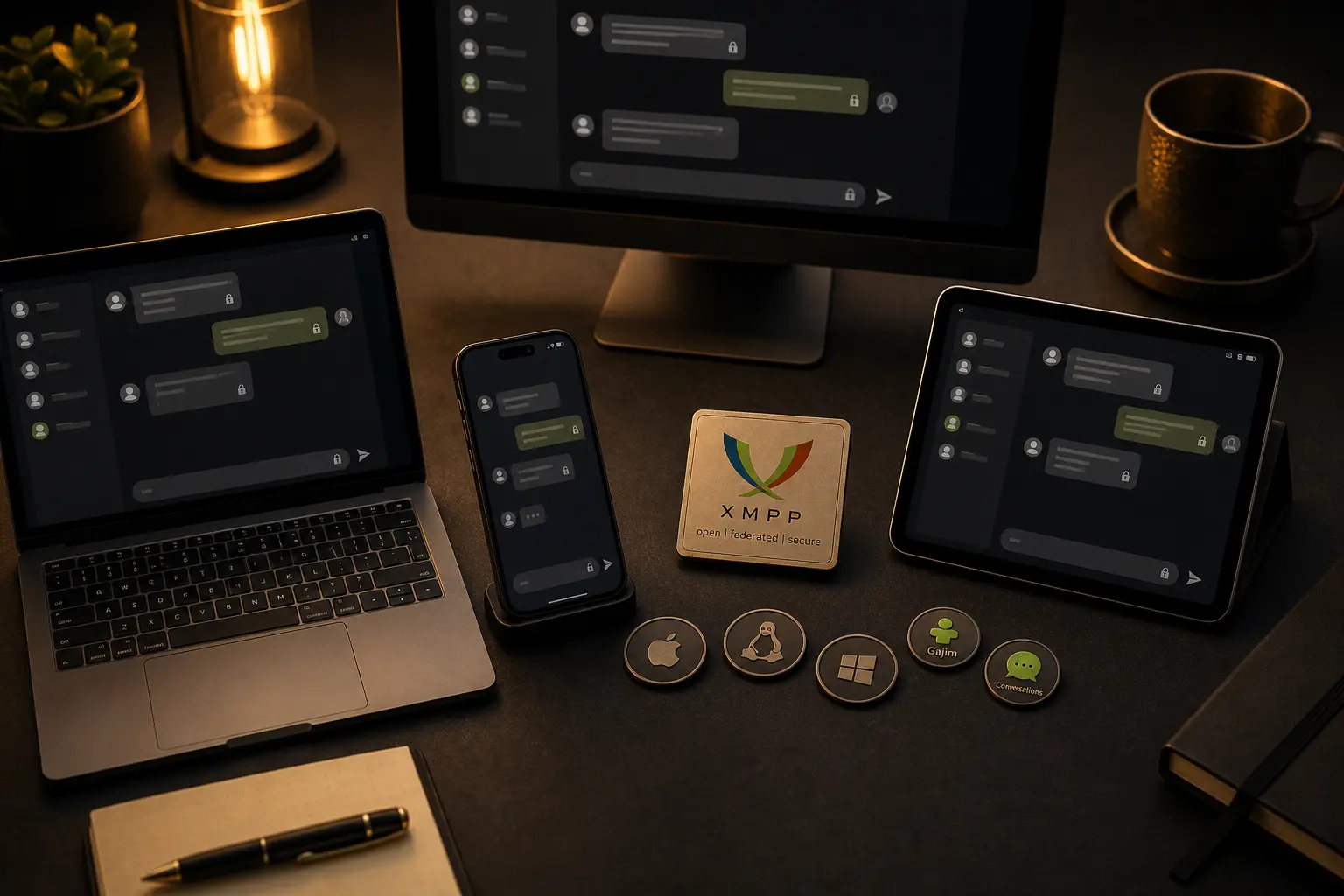
XMPP: getting started with portable encrypted communication
XMPP is not a replacement for Signal or WhatsApp as a daily messaging app. It solves a different problem: communication that works on any device you already own, without a phone number, without an approval flow, and without everything depending on one specific smartphone.
An XMPP account works on multiple devices simultaneously — an old Android phone, a laptop, a desktop. You can send messages, make voice calls and video calls, with solid encryption. And if your phone is temporarily unavailable, you log into another device and carry on.
This guide gets that working.
Who this guide is for
This guide is for readers who:
- want an extra communication channel that works without a phone number or tied account
- want to stay reachable if their primary phone is temporarily unavailable
- want encrypted communication on a device they already own — including an old phone or laptop
- are curious about an open alternative to Signal or WhatsApp without locking into one platform or one device
This is not a guide for everyday messaging with friends or family. XMPP works best as a backup channel, a second line, or a communication tool within a small trusted group willing to spend a few minutes setting it up.
What to expect
XMPP is an open protocol, not a single app. That means dozens of clients exist — for Android, iOS, desktop, even the terminal — but quality varies enormously. Most are outdated or incomplete. This guide points you to the clients that actually work well on each platform, so you do not have to sort through a long list yourself.
OMEMO encryption works well, but it requires one small step per new contact: after the first message you need to approve or trust your contact’s key material inside the app. In Conversations you do this via the padlock icon in the conversation or through Connections in the conversation settings — you will see your contact’s keys listed and can mark them as trusted. In other clients (Monal, Gajim) this is in a similar place, but the label may differ: look for “OMEMO”, “encryption keys”, or “connections”. If you skip this, the app may refuse to send encrypted or fall back to unencrypted messages.
You do this once per device your contact uses. If they add a new device later, a new key appears and you confirm it again. It is a small hurdle you work through once — after that, encryption runs automatically.
What you need
- an XMPP account (free, no phone number required)
- a client app on your device
- a contact to communicate with
That is all.
Step 1: create an account
You choose a public XMPP server. These work like email providers: your account will look like name@servername.com. You can message anyone regardless of which server they use — servers communicate with each other through federation.
Reliable free servers to start with:
- jabber.de — long-running German server, stable
- conversations.im — run by the developer of the best Android client
- trashserver.net — simple and privacy-friendly
Go to the server’s website and create an account. Most servers only ask for a username and password — no phone number, no email address required.
Keep your password safe. There is no recovery option if you lose it.
Step 2: install a client
Android
Conversations is the best choice for Android. Actively maintained, supports OMEMO encryption, voice calls, and video calls.
- F-Droid: free. This is the recommended route — the F-Droid version also includes extra privacy options.
- Google Play: paid (around €3–5 / $3–5). Functionally identical, but the F-Droid version gives you more control.
Using an old phone from a drawer: Conversations works on Android 5 and above.
iOS
Monal is the most complete option for iOS. Free on the App Store, supports OMEMO and calls.
Desktop (Linux, macOS, Windows)
Gajim runs on Windows, Linux, and macOS and is the most complete desktop option. On Linux, Gajim is available through most package managers.
Step 3: log in and set up multiple devices
Open the client, choose “add existing account” and enter your XMPP address and password.
Want to use the same account on a second or third device? Install the client on the other device and log in with the same address and password. All devices receive messages simultaneously.
Each device needs its own resource — a label that tracks which connection you are reachable on (for example name@server.com/phone and name@server.com/laptop). If two devices share the same resource, the newer connection displaces the older one. Give each device a distinct name.
In most clients you will find this in the account settings under a field called Resource or Device name. Enter a clear name like phone, laptop, or desktop. Save and reconnect.
Step 4: enable OMEMO encryption and confirm trust
OMEMO is the end-to-end encryption layer for XMPP, built on the same protocol as Signal. In Conversations it is enabled by default as soon as you and your contact both use an OMEMO-compatible client.
After the first message you need to approve your contact’s key material once. In Conversations you do this via the padlock icon in the conversation or through Connections in the conversation settings — your contact’s keys are listed there and you mark them as trusted. In other clients (Monal, Gajim) the option is in a similar place, but the label may differ: look for “OMEMO”, “encryption keys”, or “connections”. If you skip this, the app may refuse to send encrypted or fall back to unencrypted messages.
You do this once per device your contact uses. If they add a new device later, a new key appears and you confirm it again.
A closed padlock in the conversation means encryption is active. An open padlock or no padlock means messages are going out unencrypted — check that the other party is also using a modern client.
OMEMO works for group conversations, file sharing, and voice messages too.
Voice and video calls
Conversations supports voice and video calls. Tap the call icon in a conversation.
Important to know about calling: text messages federate cleanly between servers, but voice and video calls also require a TURN server for NAT traversal. Whether that works between two different servers depends on how both servers are configured. The most reliable setup for calling is when you and your contact are on the same server, or both on servers that have TURN correctly configured.
Not sure? Use conversations.im for both yourself and your contact — calls are guaranteed to work in that setup.
For desktop, Gajim supports calls via an external connection; for straightforward calls the mobile Conversations client is easiest.
Adding contacts
Share your XMPP address (name@server.com) with whoever you want to reach. They add it in their client and send a contact request. You confirm, and the conversation can start.
There is no central search function — you share your address deliberately, like an email address.
Stopping point
Account created, client installed, OMEMO active? You now have a working encrypted communication setup that runs on any device you already own — including that old phone in a drawer.
Nothing else needs configuring unless you want to go further. Want full control? You can also run your own XMPP server — popular options are Prosody (lightweight, well-documented) and ejabberd (more robust, more features). That is a step beyond this guide, but it is achievable on a Raspberry Pi or a cheap VPS. For everyday use as a backup channel, the public servers are more than enough.
Next step
More alternatives without a phone number
- SimpleX Chat: messaging without an account or identity
- Session: encrypted messaging without a phone number