USB fingerprint scanner review — fast biometric login on Windows and Linux
A USB fingerprint scanner adds biometric security to your laptop or desktop. Faster and more convenient than typing a password — as long as you understand the trade-offs.
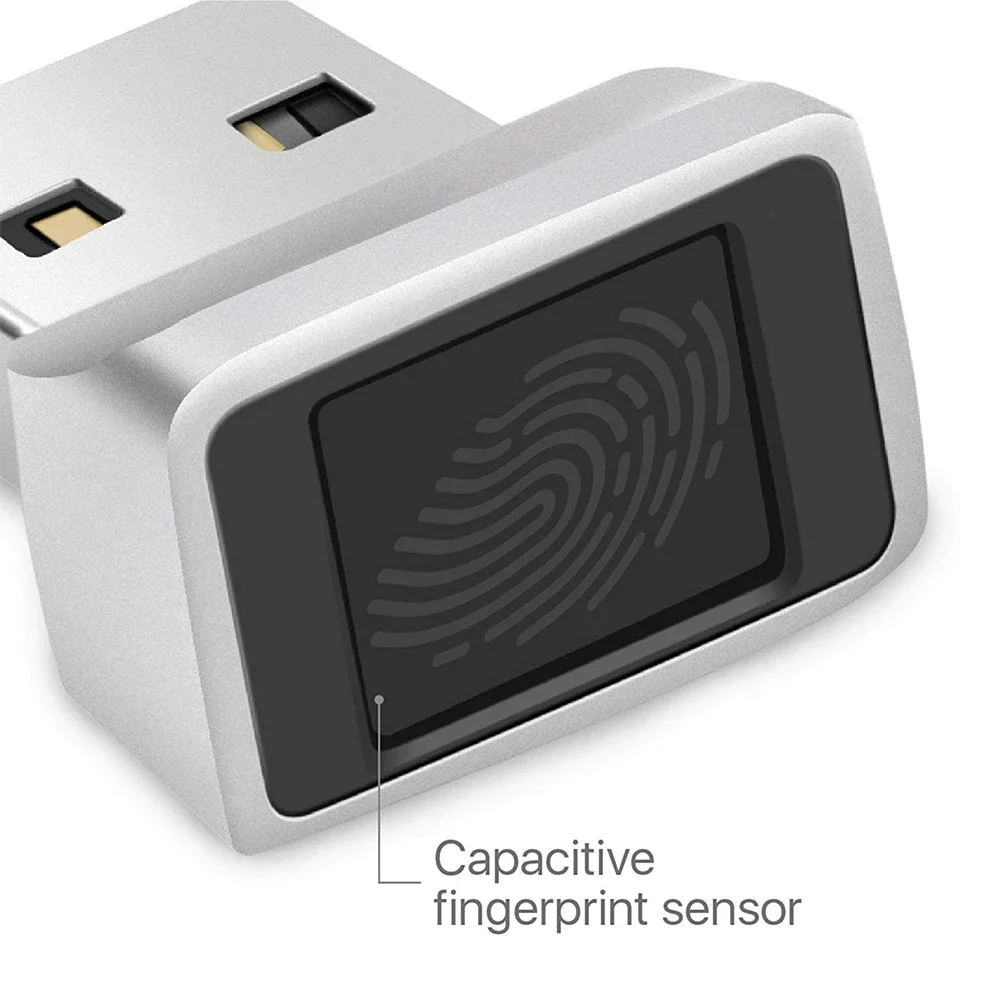
USB fingerprint scanner review
Biometric login via a fingerprint scanner is built into more and more laptops, but for desktops or older laptops an external USB scanner is an affordable solution. They work via Windows Hello or PAM on Linux.
How it works
A USB fingerprint scanner stores a mathematical model of your fingerprint locally — not the print itself, but an encrypted template. When logging in, the scanner compares the scanned finger with the stored template.
Windows Hello: Windows 10 and 11 have built-in support for external fingerprint scanners via Windows Hello. Set up via Settings → Accounts → Sign-in options.
Linux (PAM): On Linux, biometric login works via PAM (Pluggable Authentication Modules) with the fprintd service. Compatible scanners work out of the box on most distros.
Compatible scanners
Kensington VeriMark Guard (K64707WW):
- Windows Hello certified
- 360° reading angle
- Also supports FIDO2 (can work as hardware security key)
- Price: ~€45
Kensington VeriMark Desktop (K81900WW):
- Flat USB dongle, directly in port
- Windows Hello
- Price: ~€30
Validity Sensors / Synaptics-based scanners:
- Many cheaper models (€15–25) use these chips
- Broadly supported on Linux via libfprint
- Quality varies
Specifications (typical for class)
| Property | Value |
|---|---|
| Interface | USB-A or USB-C |
| OS support | Windows 10/11 (Hello), Linux (fprintd) |
| macOS | Not supported (own Secure Enclave) |
| Template storage | Local on device or scanner |
| FAR (False Acceptance Rate) | < 0.001% (certified models) |
| FRR (False Rejection Rate) | < 2% |
| Response time | < 0.5 seconds |
| Price | €20–50 |
Security considerations
What biometrics does well
- Faster than typing a password
- Harder to steal than a password (you can’t “leak” your fingerprint via phishing)
- Local storage — no data to the cloud
- Combined with a strong password as fallback: two-factor authentication in one step
What biometrics does not solve
Password still required: A scanner is an additional login method, not a replacement. You always need a password or PIN as fallback — and that is the weakest point.
Legal vulnerability: In some jurisdictions, a court can compel you to put your finger on a scanner, but not to reveal your password. In the EU this is more nuanced, but it is a consideration.
Theft of biometric template: If a password is leaked, you change it. You cannot change a fingerprint. Good scanners store encrypted templates that cannot be reversed to the original print — but quality varies by manufacturer.
Spoofing: High-tech attacks with printed fingerprints are possible. For the average user this is not a realistic risk.
Setup on Linux
# Install fprintd
sudo apt install fprintd libpam-fprintd

# Enrol your fingerprint
fprintd-enroll

# Enable for sudo
sudo pam-auth-update  # Check "fingerprint authentication"

# Test
fprintd-verify
Supported hardware on Linux: check via fwupd device list or the libfprint device database.
Conclusion
A USB fingerprint scanner is a worthwhile upgrade for users who frequently unlock their machine and find typing a password annoying. Security is good enough for home use and office — as long as you understand it is a supplement to a strong password, not a replacement.
Choose a Windows Hello-certified scanner for Windows. On Linux: check libfprint compatibility before buying.
See also:
- KeePassXC review — password management alongside biometrics
- GrapheneOS and Pixel 9 review — biometrics on mobile