From Windows or Mac to Linux: why and how to start
You do not need to be a programmer to use Linux. Modern distributions look professional, run on virtually any hardware, and are used daily by ordinary people — in offices, at home and on the go.
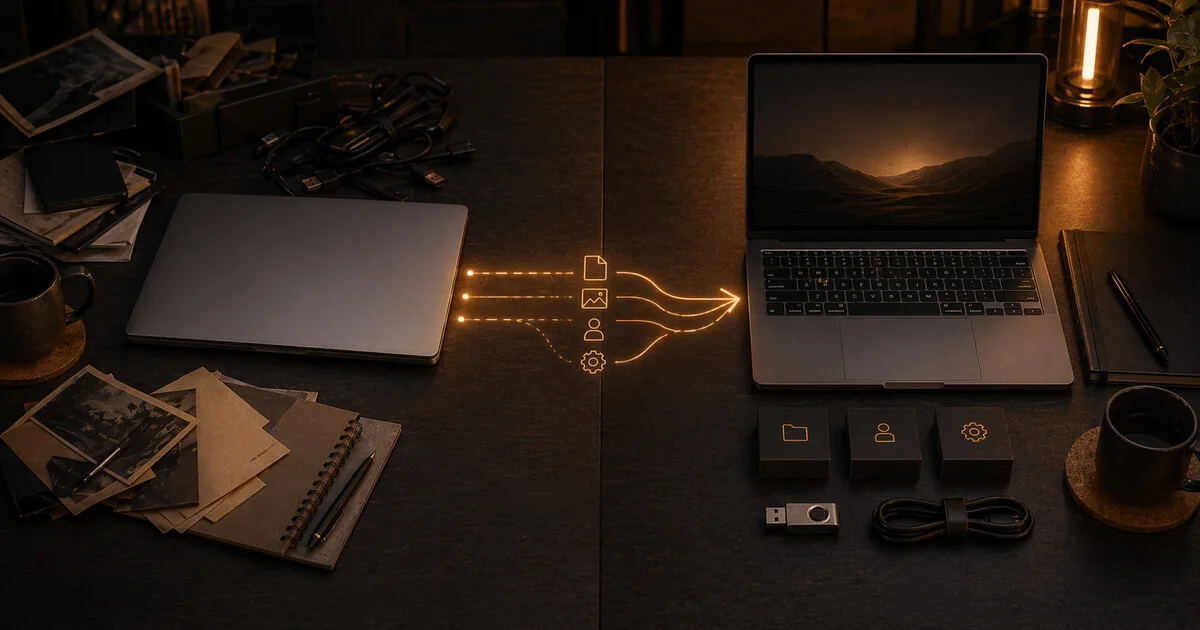
From Windows or Mac to Linux: why and how to start
You do not need to be a programmer to use Linux. Modern distributions look professional, run on virtually any hardware, and are used daily by ordinary people — in offices, at home and on the go.
The question is not whether you can use Linux. The question is whether you want to know what is happening on your computer.
Who this guide is for
This guide is for readers who are:
- frustrated with Windows or macOS telemetry, lock-in, or forced platform choices
- curious about Linux but unsure whether the switch is realistic
- looking for a practical first step rather than an ideological manifesto
What you gain, and what it costs
What you gain:
- more control over your computer and software stack
- less dependence on one vendor deciding how your machine should work
- a realistic sense of which Linux paths are easiest to start with
What it costs:
- some software habits and workflows need to change
- not every printer, business app, or game will behave the same way
- the first transition period requires patience and a bit of testing
When this is overkill
If your current computer already does what you need and you are not willing to relearn even a few habits, the switch may be more friction than value right now. Linux makes sense when control and transparency matter enough that the adjustment cost is worth paying.
What Windows and macOS actually do
Windows 11 always sends Microsoft “required” diagnostic data about your device, its settings and how it performs; Microsoft stores it with identifiers that can recognise an individual device. On Windows 11 Home and Pro there is no setting that turns this off: the “Diagnostic data off” level exists only on the Enterprise, Education and Server editions (Microsoft). Optional diagnostic data (which can include the websites you visit) and location services are separate settings; with location services on, Windows sends location information such as nearby Wi-Fi access points and your IP address to Microsoft (Microsoft).
macOS does better, but is not a free system. By default, Gatekeeper only opens apps from the App Store or from identified developers that Apple has notarised; anything else needs an extra “Open Anyway” step (Apple). macOS only runs on Apple’s own hardware. And if you use iCloud, your data sits on Apple’s servers; under the default “standard data protection” Apple holds the keys for most of it, unless you switch on Advanced Data Protection (Apple).
Both systems share one characteristic: you depend on what the company allows. Windows downloads and installs updates automatically; you can pause them, but only until a date you pick (Microsoft). Features disappear or change without your consent. The source code is closed, so outsiders cannot check what the system does.
Why Linux is different
Linux is not a product of one company. It is an operating system whose source code is public, readable, verifiable and improvable by anyone.
That means:
- Telemetry cannot hide in public code, and where a distribution collects any, you can switch it off
- You decide when updates are installed
- Software works as long as you want, not as long as the manufacturer allows
- Community, not customer service
Linux runs on servers, on all 500 of the world’s fastest supercomputers (TOP500, June 2026), at the core of every Android phone (Android’s kernel is based on Linux, AOSP) — and on your laptop.
Is the switch difficult?
That depends on what you expect.
If you expect everything to work exactly like Windows or macOS: it takes some adjustment. Some programs have no Linux version: AutoCAD runs on Windows and macOS (Autodesk), Adobe’s Creative Cloud desktop apps too (Adobe); both offer some web apps in the browser. Certain games don’t run either. Some things work differently.
If you are willing to invest a few hours: it is quite manageable. Popular distributions have graphical installers and detect most hardware on their own. Linux Mint and Fedora Workstation install the LibreOffice office suite by default; Ubuntu adds it when you choose “Extended selection” in the installer (Ubuntu).
Most people who make the switch can do these things within a week:
- Read and write email
- Browse, watch videos, listen to music
- Documents, spreadsheets, presentations (LibreOffice)
- Video calls (Jitsi in the browser, Zoom’s Linux app, Teams in the browser: Microsoft no longer supports a Teams app on Linux, Microsoft)
Where people sometimes struggle: older printers, specific business software, and Windows-only games (though Valve’s Proton, built into Steam, lets many Windows games run on Linux; Proton).
Which distributions are easy to start with?
Linux Mint — for Windows users
Linux Mint is the most recommended switch for Windows users. The interface resembles Windows 7/10: a taskbar at the bottom, a start menu, a system tray. You recognise the structure immediately.
It runs on Ubuntu as a base, which means virtually all Ubuntu software also works on Mint. Mint stays on Ubuntu’s long-term-support base: the current version, Linux Mint 22.3, uses Ubuntu 24.04 (“Noble”) and is supported until 2029 (Linux Mint). You can keep Windows next to it: a menu asks which one to start.
Good for: people who just want to get work done without configuring much.
Ubuntu — the most well-known
Ubuntu is the distribution that most documentation is written for. If you have a problem, you will find the answer quickly online. The installer is clean, and the current long-term-support version, Ubuntu 26.04 LTS, gets five years of free security updates (Ubuntu).
The GNOME desktop that Ubuntu ships by default is modern and clean — closer to macOS in feel than Windows.
Good for: people who want the big name and a large community behind them.
Pop!_OS — for people with a modern laptop
Pop!_OS from System76 is built on Ubuntu, with extra attention for recent hardware: there is a separate download with the NVIDIA driver built in, and power profiles on System76’s own laptops (System76). Since December 2025, Pop!_OS 24.04 LTS ships by default with COSMIC, System76’s own Rust-based desktop environment — with tiling built in natively rather than as an optional add-on over GNOME like before. COSMIC is usable for daily work but still moving fast (version 1.11 came out in October 2026); expect the occasional rough edge.
Good for: people with a gaming laptop or workstation who also want productivity.
Fedora — modern without being unstable
Fedora is the community upstream of RHEL (Red Hat Enterprise Linux, the system large companies and data centres run). That sounds technical, but for daily use it means: you get newer software than on an Ubuntu LTS release, but it is carefully selected.
Wayland, PipeWire, new kernel versions: Fedora is often early while still staying stable (Wayland became the default in Fedora 25, PipeWire in Fedora 34). If something works well in Fedora, you often see it show up elsewhere in the Linux ecosystem later.
Good for: people who want to keep up with what is happening in the Linux world without breaking things every week.
From macOS to Linux
Switching from macOS is somewhat different from switching from Windows. macOS users are used to a clean design, good typography, and hardware that is perfectly matched to the system.
On that last point, be honest: on an Apple Silicon Mac with an M1, M2 or M3 chip, Linux has become much more usable than a few years ago, especially through Fedora Asahi Remix. But support still varies by model and feature: Asahi’s own table lists displays over USB-C, Thunderbolt/USB4 and Touch ID as not supported yet (Asahi Linux), and M4 Macs are still work in progress (Asahi docs). Check the features you need before you commit. On Intel Macs, the situation is usually more predictable.
If you are switching from macOS to a non-Apple laptop: elementary OS (current version 8.1.1) has, in our view, paid the most attention to aesthetics and feels closest to macOS in design.
For those who want a well-designed GNOME distro on a normal laptop: Fedora Workstation looks polished and works smoothly.
iOS and mobile
Phones sit outside the Linux desktop world, but the choice is similar. iOS is a closed Apple system with little control and a lot of convenience. Android is more open, but most phones still ship with Google Play Services deeply integrated.
The privacy-focused mobile option is GrapheneOS on a Pixel phone. See the guides in the GrapheneOS section for that path.
How do you start?
Before you start: back up your files. Installing alongside Windows resizes your disk, and replacing Windows erases it.
- Download the ISO from the distribution of your choice, and check it the way its installation guide describes (for example Linux Mint)
- Put it on a USB drive with balenaEtcher (free and open source, for Windows, macOS and Linux; Linux Mint, Ubuntu and System76 all point to it). Etcher sends error reports to balena by default: switch off “Anonymously report errors to balena.io” in its settings. Fedora offers its own Fedora Media Writer that does the same.
- Boot your computer from the USB: right after switching on, press the boot-menu key your computer shows (often Esc, F2, F10, F12 or Delete) and pick the USB drive
- Use the “Live” environment to see how it feels — you are not installing anything yet, and changes in it are not saved
- If you are satisfied: install alongside Windows (dual-boot) or replace Windows entirely. The Linux Mint and Ubuntu installers offer “alongside” themselves when they find Windows; Ubuntu cannot do this while Windows BitLocker encryption is on (Ubuntu). Pop!_OS’s standard “Clean Install” erases the whole drive (System76).
Most installers walk you through the rest: you choose language, timezone and disk layout, restart, and you have a working system.
What if something does not work?
Every major problem you encounter has been experienced by someone before. The forums at Linux Mint, Ubuntu and Fedora are active and friendly to beginners.
The first time is the most learning. After that you understand how the system works — and that feeling of control is hard to give up.
Next step
Related guides
- Which Linux distro is right for you? — choose a distro that fits your hardware, patience, and workflow
- Arch Linux and Fedora: for those who want to go deeper — once the basics feel limiting